
This article provides a guide to deploy Gotify push server on Ubuntu VPS.
What is Gotify Push Server?
Gotify is a self-hosted, open-source server for sending and receiving real-time messages and push notifications via WebSockets. It features a web interface for managing applications and is commonly used to send alerts to mobile devices or browsers. It is lightweight, Docker-based, and acts as a private, self-managed alternative to services like Pushover.
Self-hosted push notifications give you full control over your messaging infrastructure—no third-party dependencies, no per-message fees, and complete privacy. In this guide, we’ll walk through deploying Gotify on an Ubuntu VPS, optimized for performance, security, and long-term reliability.
This deployment approach uses:
- Native Gotify binary (lightweight & efficient)
- systemd service management
- Nginx reverse proxy with HTTPS
- Production-ready configuration
🧩 What You’ll Need
Before starting, ensure you have:
- An Ubuntu 22.04 / Ubuntu 24.04 VPS (from Rad Web Hosting or similar)
- A domain or subdomain (e.g.
push.yourdomain.com) - Root or sudo access
- Ports 80 and 443 open

Compare Ubuntu VPS Plans
🚀 How to Deploy Gotify Push Server on Ubuntu VPS
To deploy Gotify push server on Ubuntu VPS, follow the steps below:
-
🌐 Point Your Domain (Guide)
Create an A record:
push.yourdomain.com → YOUR_SERVER_IP
-
⚙️ Update System & Install Dependencies
sudo apt update && sudo apt -y upgrade
sudo apt -y install wget unzip nginx certbot python3-certbot-nginx
-
📁 Create Directory Structure
sudo mkdir -p /opt/gotify
sudo mkdir -p /etc/gotify
sudo mkdir -p /var/log/gotify
-
⬇️ Install Gotify Binary
cd /tmp
wget https://github.com/gotify/server/releases/latest/download/gotify-linux-amd64.zip
unzip gotify-linux-amd64.zip
sudo mv gotify-linux-amd64 /opt/gotify/gotify
sudo chmod +x /opt/gotify/gotify
-
📝 Configure Gotify
Create config file:
sudo nano /etc/gotify/config.yml
Paste:
server:
  listenaddr: "127.0.0.1"
  port: 1245
  ssl:
    enabled: false

database:
  dialect: sqlite3
  connection: data/gotify.db

defaultuser:
  name: admin
  pass: "ChangeThisNow-To-A-StrongPassword!"

passstrength: 10
uploadedimagesdir: data/images
pluginsdir: data/plugins
registration: false
Secure it:
sudo chmod go-rw /etc/gotify/config.yml
-
🔧 Create systemd Service
sudo nano /etc/systemd/system/gotify.service
[Unit]
Description=Gotify Push Server
Requires=network.target
After=network.target

[Service]
Type=simple
User=root
WorkingDirectory=/opt/gotify
ExecStart=/opt/gotify/gotify
StandardOutput=append:/var/log/gotify/gotify.log
StandardError=append:/var/log/gotify/gotify-error.log
Restart=always
RestartSec=3

[Install]
WantedBy=multi-user.target
Enable and start:
sudo systemctl daemon-reload
sudo systemctl enable gotify
sudo systemctl start gotify
-
🔍 Verify Service
ss -tulpn | grep 1245
curl http://127.0.0.1:1245
Check logs:
See Also: How to Deploy OpenProject on Ubuntu VPS
sudo tail -f /var/log/gotify/gotify.log
-
🌍 Configure Nginx Reverse Proxy
sudo nano /etc/nginx/sites-available/gotify
upstream gotify {
    server 127.0.0.1:1245;
}

server {
    listen 80;
    server_name push.yourdomain.com;

    location / {
        proxy_pass http://gotify;
        proxy_http_version 1.1;

        proxy_set_header Upgrade $http_upgrade;
        proxy_set_header Connection "upgrade";
        proxy_set_header X-Real-IP $remote_addr;
        proxy_set_header X-Forwarded-For $proxy_add_x_forwarded_for;
        proxy_set_header X-Forwarded-Proto http;
        proxy_set_header Host $http_host;

        proxy_read_timeout 1m;
    }
}
Enable it:
sudo ln -s /etc/nginx/sites-available/gotify /etc/nginx/sites-enabled/
sudo nginx -t
sudo systemctl reload nginx
-
🔒 Enable HTTPS (Let’s Encrypt)
sudo certbot --nginx -d push.yourdomain.com
Choose redirect to HTTPS when prompted.
-
🔑 First Login

Visit:https://push.yourdomain.com
Login with:
Username: admin
Password: (your configured password)

-
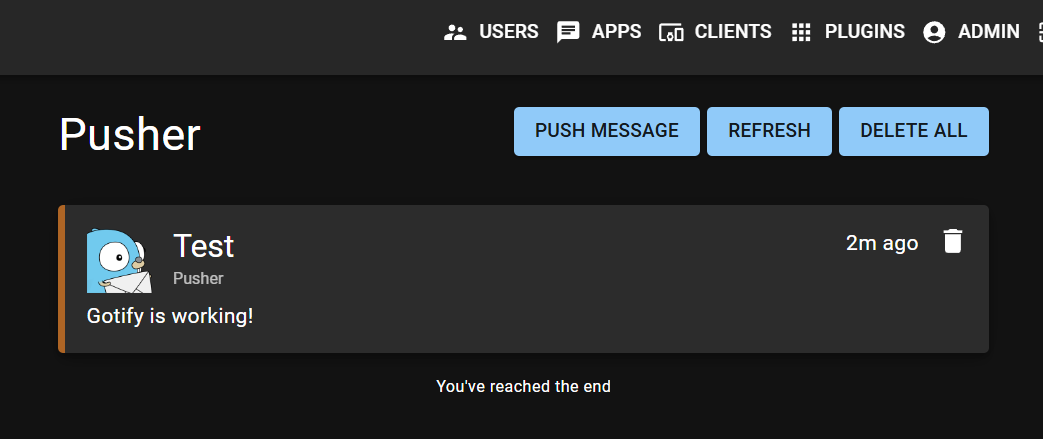
📲 Send Your First Notification
Create an application in the Gotify UI and grab the token.
Test:
curl -X POST "https://push.yourdomain.com/message?token=YOUR_TOKEN" \
  -F "title=Test" \
  -F "message=Gotify is working!" \
  -F "priority=5"
Gotify Plugins
These community-contributed plugins help extend Gotify.
- Gotify-SMTP: A standalone plugin that allows Gotify to act as an SMTP server, capturing emails and converting them into push notifications.
- Authentik Plugin: Specifically designed to process webhooks from Authentik, formatting login events for administrators.
- SEE ALSO: Install Authentik IdP on Debian VPS
- Webhooks Plugin: Extends Gotify’s ability to handle various incoming webhook formats.
- Jellyfin Plugin: A plugin for the Jellyfin media server that forwards its internal alerts directly to Gotify.
- CrowdSec Notification Plugin: An integration that forwards security alerts from CrowdSec to Gotify.
🛠️ Management Commands
Restart:
sudo systemctl restart gotify
Status:
sudo systemctl status gotify
Logs:
sudo tail -f /var/log/gotify/gotify.log
🔐 Production Hardening Tips
- Use a strong admin password
- Keep
registration: false(prevents abuse) - Bind Gotify to
127.0.0.1only - Use firewall rules (UFW or CSF)
- Enable automatic security updates
- Back up
/opt/gotifyregularly
💡 Why Run Gotify on a VPS?
Running Gotify on a VPS from Rad Web Hosting gives you:
- ⚡ High-performance SSD infrastructure
- 🔒 Full control over notifications and data
- 🌎 Global uptime reliability
- 🛠️ Custom automation & integrations
Perfect for:
- Monitoring alerts
- DevOps pipelines
- Billing systems (WHMCS, etc.)
- Internal messaging systems
🚀 Final Thoughts
Gotify is one of the simplest and most powerful self-hosted notification systems available. With this setup, you now have a secure, scalable push server running on your own infrastructure.
See Also: How to Deploy Kamailio on Ubuntu VPS
Conclusion
You now know how to deploy Gotify push server on Ubuntu VPS.