
This article provides a guide to deploy Shoutcast streaming server on Ubuntu VPS.
What is Shoutcast?
Shoutcast is a streaming server platform used to broadcast live or on-demand audio over the internet—most commonly for online radio stations.
Shoutcast lets you stream audio (like MP3 or AAC) from a server to listeners worldwide using a standard web browser or media player.
What it does, in plain terms
- Acts as the middleman between your audio source (DJ software, automation, live mic) and your listeners
- Distributes a single audio stream to thousands of listeners at once
- Handles playlists, metadata, and listener stats
Common use cases
- Internet radio stations (music, talk, niche genres)
- Campus or community radio
- DJs streaming live sets
- Background audio for websites or apps
How it typically works
- You run a Shoutcast server on a VPS or dedicated server
- You connect to it using broadcasting software (Winamp, BUTT, Mixxx, etc.)
- Listeners tune in via a stream URL (or embedded web player)
Key features
- Supports MP3 and AAC+
- Public directory listing (optional)
- Live DJ + automated playlists
- Listener statistics and limits
- Low latency compared to many video platforms

Compare Ubuntu VPS Plans
Deploy Shoutcast Streaming Server on Ubuntu VPS
To deploy Shoutcast streaming server on Ubuntu VPS, follow the steps below:
-
Prep the Ubuntu VPS
-
Update the server
sudo apt update
sudo apt -y upgrade
sudo reboot
-
Create a dedicated service user (recommended)
sudo adduser --system --home /opt/shoutcast --group --shell /usr/sbin/nologin shoutcast
-
Install common dependencies
Shoutcast DNAS is distributed as a prebuilt binary, so you usually just need standard runtime libs.
sudo apt -y install wget tar ca-certificates libstdc++6 ufw
-
-
Download Shoutcast DNAS (server)
Shoutcast’s server software is DNAS (binary
sc_serv).-
Use the “latest” Linux x64 tarball URL used by major VPS docs
Several current how-tos reference the “latest” tarball naming (linux x64).
cd /tmp
wget -O sc_serv2_linux_x64-latest.tar.gz http://download.nullsoft.com/shoutcast/tools/sc_serv2_linux_x64-latest.tar.gz
If that host is unavailable from your network, use a mirror that provides the same filename set and timestamps.
-
Extract into
/opt/shoutcastsudo mkdir -p /opt/shoutcast sudo tar -xzf /tmp/sc_serv2_linux_x64-latest.tar.gz -C /opt/shoutcast sudo chown -R shoutcast:shoutcast /opt/shoutcast
Confirm the binary exists:
ls -la /opt/shoutcast/sc_serv
-
-
Create Shoutcast configuration
Shoutcast reads settings from
sc_serv.conf(or a custom filename you pass on startup). The official configuration reference documents the supported options.-
Create directories for logs and content
sudo mkdir -p /opt/shoutcast/{logs,content,playlists} sudo chown -R shoutcast:shoutcast /opt/shoutcast -
Create
/opt/shoutcast/sc_serv.confsudo nano /opt/shoutcast/sc_serv.conf
Paste a solid “first server” config (adjust passwords and hostname):
; =========================
; SHOUTcast DNAS basic config
; =========================

; --- Networking ---
portbase=8000
publicport=8000
; If you have a DNS name, set it:
; hostname=radio.example.com

; --- Auth ---
adminpassword=CHANGE_THIS_ADMIN_PASSWORD
password=CHANGE_THIS_SOURCE_PASSWORD

; --- Station identity ---
streamtitle=My Radio
streamurl=https://example.com
streamgenre=Various
streamaim=My internet radio

; --- Files / logging ---
logfile=/opt/shoutcast/logs/sc_serv.log
w3clog=/opt/shoutcast/logs/sc_w3c.log
banfile=/opt/shoutcast/sc_serv.ban
ripfile=/opt/shoutcast/sc_serv.rip

; --- Recommended ---
requirestreamconfigs=1
Notes:
adminpasswordis for the web admin UI;passwordis what your source client (e.g., Mixxx) uses to connect.requirestreamconfigs=1is commonly used in starter setups.
-
-
Open firewall ports (UFW)
If you use UFW, allow SSH and your Shoutcast port (default 8000):
sudo ufw allow OpenSSH
sudo ufw allow 8000/tcp
sudo ufw enable
sudo ufw status
If you plan to serve the web admin on a different port (or additional services), open those too.
-
Create a systemd service (auto-start on boot)
-
Create
/etc/systemd/system/shoutcast.servicesudo nano /etc/systemd/system/shoutcast.service
[Unit]
Description=Shoutcast DNAS Server
After=network-online.target
Wants=network-online.target

[Service]
Type=simple
User=shoutcast
Group=shoutcast
WorkingDirectory=/opt/shoutcast
ExecStart=/opt/shoutcast/sc_serv /opt/shoutcast/sc_serv.conf
Restart=on-failure
RestartSec=3
NoNewPrivileges=true
PrivateTmp=true
ProtectSystem=full
ProtectHome=true
ReadWritePaths=/opt/shoutcast

[Install]
WantedBy=multi-user.target
-
Enable and start
sudo systemctl daemon-reload
sudo systemctl enable --now shoutcast
sudo systemctl status shoutcast --no-pager
-
View logs
sudo journalctl -u shoutcast -n 200 --no-pager
sudo tail -n 200 /opt/shoutcast/logs/sc_serv.log
-
-
Test from a browser (listener + admin)
-
Listener test
From your computer:
http://YOUR_SERVER_IP:8000/
-
Admin UI
Depending on DNAS build/config, it’s typically reachable via the server’s web interface on the same port. Try:
http://YOUR_SERVER_IP:8000/admin.cgi
Log in with:
- Username:
admin(commonly) - Password: the
adminpasswordyou set
(If your build uses a different admin path/UI, check the startup log output—DNAS usually prints its web/admin endpoints during boot.)
-
-
Connect a source (broadcast audio)
You can stream to Shoutcast using broadcasting software like Mixxx (common free option).
Typical source settings:
- Host: your server IP (or hostname)
- Port:
8000 - Mount: (often blank for Shoutcast; depends on the client)
- Password: the
password=value fromsc_serv.conf - Format/Encoder: MP3 is the easiest baseline; AAC may be available depending on DNAS build/features. (Newer DNAS builds also added/expanded features like SSL support on Linux.)
Once connected, listeners use:
http://YOUR_SERVER_IP:8000/
-
Optional hardening checklist
-
Run it only as the dedicated user
Already done via systemd (
User=shoutcast). -
Restrict admin access (recommended)
If you’ll manage it only from your own IP, restrict with a firewall rule (example: only allow admin from your IP, still allow listeners globally). The exact approach depends on whether Shoutcast exposes admin on the same port and how your chosen setup routes traffic.
-
Put it behind a reverse proxy (optional)
If you want:
- a friendly domain like
radio.example.com - TLS termination (HTTPS)
- IP allowlisting for admin paths
Use Nginx as a front door, and proxy to
127.0.0.1:8000, while binding Shoutcast to localhost if supported by your config/build. - a friendly domain like
-
-
Quick troubleshooting
Service won’t start
sudo systemctl status shoutcast --no-pager
sudo journalctl -u shoutcast -n 200 --no-pager
Common causes:
- Port already in use (change
portbase/publicport) - Wrong architecture binary (use x64 on most VPS)
- Missing runtime libs (ensure
libstdc++6is installed)
Can’t connect from outside
- Confirm the VPS provider firewall/security group allows TCP 8000
- Confirm UFW allows it:
sudo ufw status - Confirm the daemon is listening:
sudo ss -ltnp | grep 8000
- Port already in use (change
Compare Ubuntu VPS Plans
Below is a clean, production-ready, step-by-step configuration to put Shoutcast behind Nginx with automated TLS (Let’s Encrypt via Certbot) for:
Domain: radio.example.com
Backend Shoutcast: running on 127.0.0.1:8000
OS: Ubuntu 22.04 / Ubuntu 24.04 compatible
This assumes Shoutcast is already running and reachable locally.
-
DNS (required first)
radio.example.com → YOUR_SERVER_IP
Wait for DNS to propagate before continuing.
-
Install Nginx + Certbot
sudo apt update
sudo apt -y install nginx certbot python3-certbot-nginx
Enable Nginx:
sudo systemctl enable --now nginx
-
Firewall (HTTP + HTTPS)
sudo ufw allow 80/tcp
sudo ufw allow 443/tcp
sudo ufw reload
You do not need to expose port
8000publicly once proxied. -
Create Nginx server block for Shoutcast
-
Create config
sudo nano /etc/nginx/sites-available/radio.example.com
-
Paste exactly:
server { listen 80; server_name radio.example.com; location / { proxy_pass http://127.0.0.1:8000; proxy_http_version 1.1; proxy_set_header Host $host; proxy_set_header X-Real-IP $remote_addr; proxy_set_header X-Forwarded-For $proxy_add_x_forwarded_for; proxy_set_header X-Forwarded-Proto $scheme; proxy_buffering off; proxy_request_buffering off; } } -
Enable site
sudo ln -s /etc/nginx/sites-available/radio.example.com /etc/nginx/sites-enabled/
sudo nginx -t
sudo systemctl reload nginx
At this point:
http://radio.example.com
should load Shoutcast over plain HTTP.
-
-
Issue TLS certificate (Certbot)
sudo certbot --nginx -d radio.example.com
Choose:
- Redirect HTTP → HTTPS: Yes
- Email + TOS: Accept
Certbot will automatically modify your Nginx config.
-
Final hardened Nginx TLS config (recommended)
After Certbot runs, edit again:
sudo nano /etc/nginx/sites-available/radio.example.com
Replace contents with this optimized streaming-safe config:
server {
    listen 80;
    server_name radio.example.com;
    return 301 https://$host$request_uri;
}

server {
    listen 443 ssl http2;
    server_name radio.example.com;

    ssl_certificate /etc/letsencrypt/live/radio.example.com/fullchain.pem;
    ssl_certificate_key /etc/letsencrypt/live/radio.example.com/privkey.pem;

    ssl_protocols TLSv1.2 TLSv1.3;
    ssl_prefer_server_ciphers off;

    location / {
        proxy_pass http://127.0.0.1:8000;
        proxy_http_version 1.1;

        proxy_set_header Host $host;
        proxy_set_header X-Real-IP $remote_addr;
        proxy_set_header X-Forwarded-For $proxy_add_x_forwarded_for;
        proxy_set_header X-Forwarded-Proto https;

        proxy_buffering off;
        proxy_request_buffering off;

        # Streaming stability
        proxy_read_timeout 1h;
        proxy_send_timeout 1h;
        send_timeout 1h;
    }
}
Reload:
sudo nginx -t
sudo systemctl reload nginx
-
Verify HTTPS streaming
✅ Listener URL:
https://radio.example.com/
✅ Admin UI:
https://radio.example.com/admin.cgi
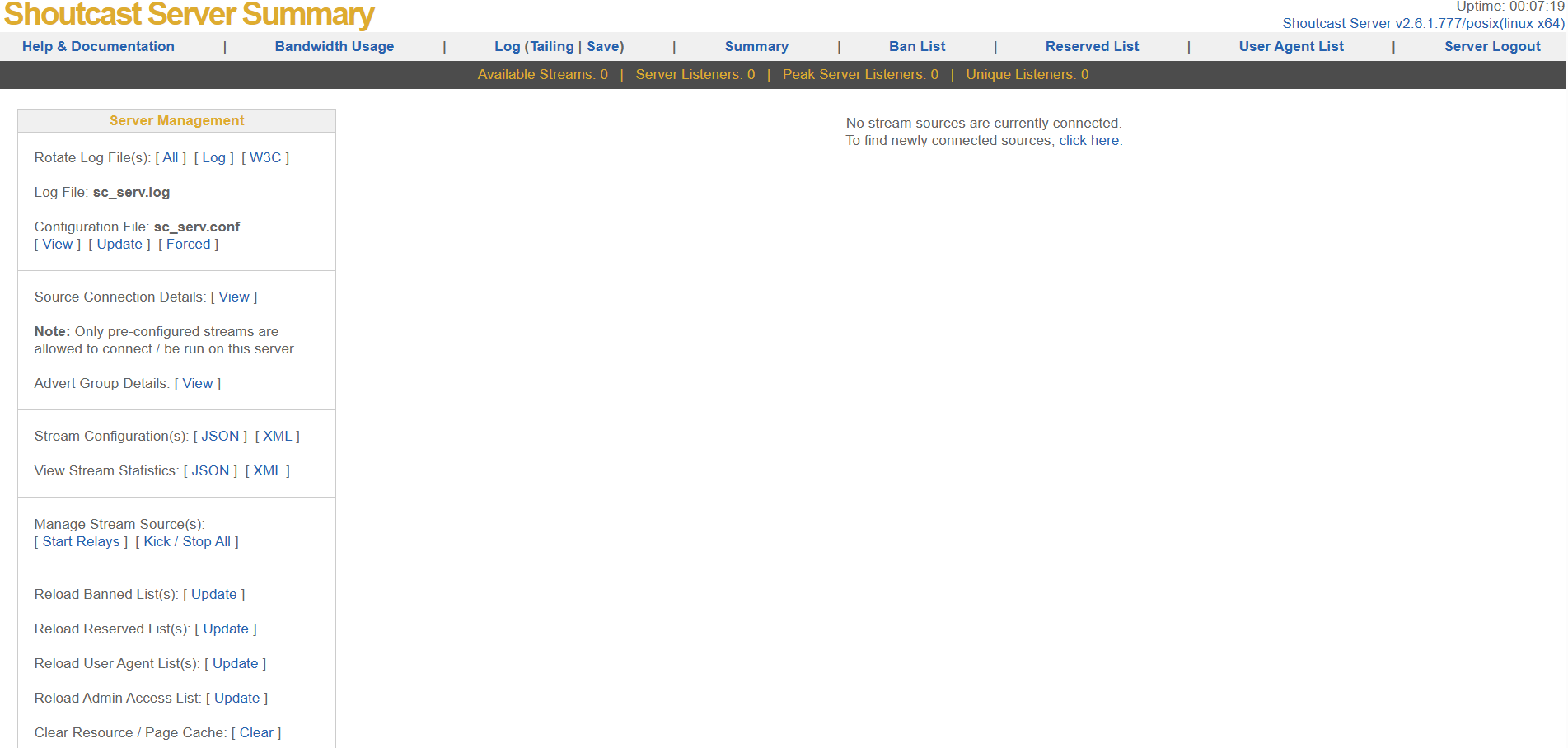
Shoutcast server summary SSL is now:
- Valid
- Auto-renewing
- Reverse-proxied
- Firewall-safe
-
Certbot auto-renew (already enabled, but verify)
sudo systemctl status certbot.timer
Test renewal:
sudo certbot renew --dry-run
-
Optional: lock Shoutcast to localhost only (recommended)
If Shoutcast supports bind control in your build:
bindaddr=127.0.0.1
Then remove public firewall access to
8000entirely. -
Final architecture (best practice)
Internet
   ↓ HTTPS 443
Nginx (TLS, HTTP/2)
   ↓ localhost
Shoutcast DNAS (127.0.0.1:8000)
Conclusion
You now know how to deploy Shoutcast streaming server on Ubuntu VPS.