What is Bugzilla?
Bugzilla is an open-source bug tracking and issue management system developed by Mozilla. It is widely used by software development teams to track bugs, enhancements, and other project issues throughout the development lifecycle.
🔍 Key Features of Bugzilla:
- Issue Tracking: Report, assign, prioritize, and resolve bugs or tasks.
- Advanced Search & Filters: Powerful query builder for custom reports.
- Email Notifications: Automatic updates when issues change status.
- Custom Workflows: Tailor issue states and transitions to match your team’s process.
- Access Control: User roles and permissions for security and organization.
- Time Tracking: Log and estimate time for issues.
- Extensibility: Supports plugins, custom fields, and integration with other tools.
✅ Who Uses Bugzilla?
- Software Development Teams (for tracking bugs and feature requests)
- QA Teams (for reporting and verifying fixes)
- Project Managers (for milestone and progress tracking)
🛠️ Typical Use Case:
- 🔎A tester finds a bug and reports it in Bugzilla.
- 🛠️A developer is assigned the bug and resolves it.
- ✅The fix is tested and the issue is marked as verified/closed.
Bugzilla is highly stable, scalable, and has been used by major organizations like Mozilla, Apache, GNOME, and the Linux kernel community.
Pre-requisites
This guide assumes you are starting with a fresh Ubuntu VPS (preferably Ubuntu 20.04 or Ubuntu 22.04) with root or sudo access.

How to Deploy Bugzilla on Ubuntu VPS
To install Bugzilla on Ubuntu VPS, follow the steps below:
-
Update System Packages
Login via SSH as root and run the following commands:
sudo apt update && sudo apt upgrade -y
-
Install Required Packages
Bugzilla requires several dependencies including Perl modules, Apache, and MySQL/MariaDB.
sudo apt install apache2 mariadb-server libapache2-mod-perl2 -y
-
Install Perl and Perl Modules
Bugzilla uses Perl heavily, so install Perl and all necessary modules.
sudo apt install perl libdatetime-perl libdbi-perl libdbd-mysql-perl \
libtemplate-perl libmime-tools-perl libemail-sender-perl \
libemail-mime-perl liburi-perl liblist-moreutils-perl \
libgd-perl libchart-perl libxml-parser-perl libsoap-lite-perl \
libjson-pp-perl libjson-xs-perl libappconfig-perl libencode-detect-perl -y
-
Configure MariaDB for Bugzilla
- Secure the database installation:
sudo mysql_secure_installation
Use strong password and answer prompts accordingly.
- Create a Bugzilla database and user:
sudo mysql -u root -p
Inside MySQL shell:
CREATE DATABASE bugzilla CHARACTER SET utf8mb4 COLLATE utf8mb4_bin;
CREATE USER 'bugzillauser'@'localhost' IDENTIFIED BY 'strongpassword';
GRANT ALL PRIVILEGES ON bugzilla.* TO 'bugzillauser'@'localhost';
FLUSH PRIVILEGES;
EXIT;
- Secure the database installation:
-
Download and Install Bugzilla
cd /var/www/html
sudo wget https://ftp.mozilla.org/pub/mozilla.org/webtools/bugzilla/5.0.6/bugzilla-5.0.6.tar.gz
sudo tar -xvzf bugzilla-5.0.6.tar.gz
sudo mv bugzilla-5.0.6 bugzilla
cd bugzilla
-
Install Bugzilla Perl Dependencies
Bugzilla comes with a script to check and install all required Perl modules:
sudo apt install build-essential -y
sudo perl install-module.pl --all
If any modules are missing or fail to install, use:
sudo cpan install Module::Name
-
Configure Bugzilla
Run Bugzilla’s setup check:
./checksetup.pl
This will generate
localconfig. Open it and configure:sudo nano localconfig
Set the following:
$db_name = 'bugzilla';
$db_user = 'bugzillauser';
$db_pass = 'strongpassword';
Then run
checksetup.plagain:./checksetup.pl
You’ll be prompted to create an admin account.
-
Configure Apache for Bugzilla
Create a new Apache config file:
sudo nano /etc/apache2/sites-available/bugzilla.conf
Paste the following:
<VirtualHost *:80>
    ServerAdmin admin@example.com
    DocumentRoot /var/www/html/bugzilla
    ServerName bugzilla.example.com

    <Directory /var/www/html/bugzilla>
        AddHandler cgi-script .cgi
        Options +ExecCGI
        DirectoryIndex index.cgi
        AllowOverride All
        Require all granted
    </Directory>

    ErrorLog ${APACHE_LOG_DIR}/bugzilla_error.log
    CustomLog ${APACHE_LOG_DIR}/bugzilla_access.log combined
</VirtualHost>

<VirtualHost *:443>
    ServerAdmin admin@example.com
    DocumentRoot /var/www/html/bugzilla
    ServerName bugzilla.example.com

    SSLEngine on
    SSLCertificateFile /etc/letsencrypt/live/bugzilla.example.com/fullchain.pem
    SSLCertificateKeyFile /etc/letsencrypt/live/bugzilla.example.com/privkey.pem

    <Directory /var/www/html/bugzilla>
        AddHandler cgi-script .cgi
        Options +ExecCGI
        DirectoryIndex index.cgi
        AllowOverride All
        Require all granted
    </Directory>

    ErrorLog ${APACHE_LOG_DIR}/bugzilla_ssl_error.log
    CustomLog ${APACHE_LOG_DIR}/bugzilla_ssl_access.log combined
</VirtualHost>
Enable the config and necessary modules:
sudo a2ensite bugzilla.conf
sudo a2enmod cgi
sudo systemctl restart apache2
-
Secure With HTTPS (Let’s Encrypt)
sudo apt install certbot python3-certbot-apache -y
sudo certbot --apache -d bugzilla.example.com
Your Bugzilla installation is now secured by SSL with automatic renewal!
-
Access Bugzilla
Visit
http://your-server-ip/bugzillaor your configured domain (e.g.,http://bugzilla.example.com).Login with the admin credentials you created.
Conclusion
You now know how to deploy Bugzilla on Ubuntu VPS. Better yet, Bugzilla is now installed and running on your Ubuntu VPS!
Next: 🛠️ Comprehensive Bugzilla Administration Guide
Since you are now familiar with how to deploy Bugzilla on Ubuntu VPS, you’ll want to have a look at our Comprehensive Bugzilla Administration Guide. This will give you essential insights for managing your Bugzilla installation efficiently after deployment:
How to Access the Bugzilla Admin Panel
- Visit your Bugzilla instance (e.g.,
http://yourdomain.com/bugzilla) - Log in as the administrator (created during
checksetup.pl) - Click “Administration” in the top navigation bar
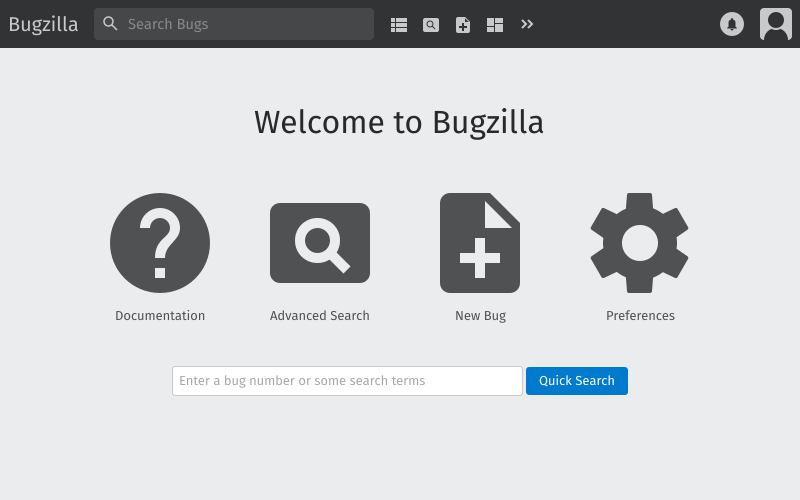
Here’s our comprehensive Bugzilla administration guide:
-
Managing Users
-
Add a New User:
- Go to Administration > Users > Add User
- Fill in:
- Full Name
- Password
- Assign to a group if needed
-
User Permissions:
- You can make a user an administrator by enabling the
admingroup - Control module access via group membership
- You can make a user an administrator by enabling the
-
Disable a User:
- Go to Users > Search
- Edit the user
- Uncheck Enabled
-
-
Creating and Managing Products
Products represent a software project or module.
-
Add a Product:
- Go to Administration > Products > Add
- Set:
- Product name
- Description
- Default assignee
- Classification (optional)
-
Components:
- After creating a product, add components (e.g., “Frontend”, “Backend”)
- Each component can have a default owner
-
-
Custom Fields
-
Add Custom Fields:
- Go to Administration > Custom Fields
- Choose type: text, dropdown, checkbox, etc.
- Set visibility, required status, and associated products
-
-
Managing Workflows
Bug Status Workflow:
- Go to Administration > Workflow
- Customize how bugs move between statuses (e.g., NEW → ASSIGNED → RESOLVED)
You can:
- Add/remove transitions
- Require comments for specific transitions
- Change which resolutions are available
-
Parameters (Global Configuration)
-
Access via:
Administration > Parameters
Some critical sections include:
-
Email Settings
- Set mail delivery method (
sendmail,smtp) - Configure bounce prevention and bugmail preferences
- Set mail delivery method (
-
Bug Fields
- Set default statuses, resolutions, priorities, and severities
-
Authentication
- Choose between internal DB, LDAP, RADIUS, etc.
-
Security
- Enable SSL, token-based protection, password strength enforcement
-
-
Extensions
Bugzilla supports extensions (add-ons):
Managing Extensions:
- Place extensions in
Bugzilla/extensions/ - Activate via:
./checksetup.pl
- View/manage via Administration > Extensions
Popular extensions:- Graphical bug tracking reports
- Time tracking improvements
- REST API enhancements
- Place extensions in
-
Reports and Charts
Available under Reports:
- Tabular Reports: Count bugs by status/product/etc.
- Graphical Reports: Bar/pie/line charts
- Line Graphs: Track bug counts over time
Admins can restrict or allow access to reporting features.
-
Backup and Maintenance
-
Backup the Database:
mysqldump -u root -p bugzilla > bugzilla_backup.sql
-
Backup Attachments and Code:
tar -czvf bugzilla_files.tar.gz /var/www/html/bugzilla
Schedule regular backups via
cron.
-
-
Upgrades
To upgrade Bugzilla:
- Back up files and database.
- Download the latest version from https://www.bugzilla.org/download/
- Replace source files (excluding your
data/,localconfig) - Run:
./checksetup.pl
Resolve any module/dependency issues that arise.
-
Email Notifications
Ensure the server can send email (via
sendmailorSMTP).Check test mail functionality:
./testserver.pl --mail
Set templates and notification rules under:
Administration > Email Preferences
Extra-Credit: Configure Bugzilla Issue-Tracker for Self-hosted Gitlab
To configure Bugzilla as the issue tracker for your self-hosted GitLab instance, you need to integrate GitLab’s external issue tracker support with your Bugzilla installation.
GitLab does not offer native two-way Bugzilla integration, but you can configure GitLab to use Bugzilla as an external issue tracker, allowing you to:
- Reference Bugzilla issues in GitLab commits and merge requests.
- Automatically link to Bugzilla issues using shorthand like
BZ-1234.
✅ Requirements
- A self-hosted GitLab instance (CE or EE)
- A Bugzilla instance (self-hosted)
- Admin access to both systems
- Known URL pattern for your Bugzilla issue links (e.g.,
https://bugzilla.example.com/show_bug.cgi?id=1234)
🛠️ How to Configure Bugzilla Issue-Tracker for Self-Hosted Gitlab
To configure Bugzilla issue-tracker for self-hosted Gitlab, follow the steps below:
-
Step 1: Enable External Issue Tracker in GitLab Project
- Login to GitLab
- Go to your project > Settings > Integrations (or Settings > General > Service Desk depending on GitLab version)
- Scroll to “Issue tracker” section
- Select “Custom issue tracker”
-
Step 2: Configure Bugzilla URL Patterns
You’ll be asked to fill the following fields:
Field Value Example Title Bugzilla Issue URL https://bugzilla.example.com/show_bug.cgi?id=:idProject URL https://bugzilla.example.com/Issues regex (optional) BZ-(\d+)orBug\s+#?(\d+)(depends on your preferred reference format):idis a placeholder GitLab replaces with the actual issue number. -
Step 3: Save Integration
Click Save changes at the bottom.
Now when someone writes
BZ-1234orBug #1234in commits, merge requests, or comments, GitLab will automatically create a link to Bugzilla issue 1234.
🔁 Optional Enhancements
Enable Reference Links in Markdown
In your GitLab project’s markdown or commit messages, referencing BZ-1234 will now hyperlink to the Bugzilla issue.
You can define your own pattern in “Issues regex” if you want more flexibility.
Two-Way Integration (Advanced)
If you want two-way integration such as:
- Closing Bugzilla issues from GitLab MRs
- Syncing issue status or comments
You will need custom scripts or webhooks, or a bridge tool such as:
- bugzilla-gitlab-bridge – bridges comments
- Custom API integrations using Bugzilla’s REST API and GitLab Webhooks
🧪 Test the Setup
- Commit with message:
Fixes BZ-4567: Incorrect timeout on user session
- Push to GitLab.
- Navigate to the commit in GitLab –
BZ-4567should now link to:
https://bugzilla.example.com/show_bug.cgi?id=4567
📌 Tips
- GitLab doesn’t sync issue state with Bugzilla by default.
- Webhooks or cron jobs may be used to automate syncing comments or issue closures if needed.
- Use Bugzilla’s REST API (
/rest/bug/) for automation scripts.
Conclusion
By following the guides, you now know how to deploy Bugzilla on Ubuntu VPS and have an in-depth understanding of how to manage a self-hosted Bugzilla installation. You now know how to configure Bugzilla issue-tracker for self-hosted Gitlab.