What is Matomo?
Matomo (formerly Piwik) is an open-source web analytics platform that allows businesses and website owners to track visitor behavior, monitor site performance, and gain insights into user interactions. It is a privacy-focused alternative to Google Analytics, giving users full control over their data without relying on third-party services.
Key Features of Matomo:
- Self-Hosted: You can install Matomo on an AlmaLinux VPS server.
- Privacy Compliance: Matomo is GDPR, HIPAA, and CCPA compliant, making it a preferred choice for privacy-conscious organizations.
- No Data Sampling: Unlike Google Analytics, Matomo provides 100% accurate data without sampling.
- Customizable Dashboards: Users can create tailored reports and dashboards.
- Heatmaps & Session Recordings: It offers visual insights into user behavior on web pages.
- Conversion Tracking & Funnels: Helps in analyzing marketing campaign performance and user journeys.
- E-commerce & Goal Tracking: Supports tracking sales, product interactions, and goal completions.
Prerequisites
Before you begin to install Matomo on AlmaLinux VPS, make sure you have:
- An AlmaLinux VPS running AlmaLinux 8 or later.
- A sudo user with SSH access.
- A LAMP (Linux, Apache, MySQL/MariaDB, PHP) or LEMP (Linux, Nginx, MySQL/MariaDB, PHP) stack installed.
- A domain or subdomain pointing to your VPS.
Below you will find general recommendations for which instance types to use. While these should work well for most cases, you may need to adjust the instances types to suit your processing workload. Matomo Analytics is designed for speed.
Tracking 100,000 page views per month or less
While Matomo can scale to millions of pages, it is also very efficient to run on a smaller scale, even on a shared hosting account.
- One server is sufficient to host both the database and app server
- App server minimum recommended configuration: 2 CPU, 2 GB RAM, 50GB SSD disk.
Tracking 1 million page views per month or less
- One server can be sufficient to host both the database and app server
- App server minimum recommended configuration: 4 CPU, 8 GB RAM, 250GB SSD disk.
Tracking 10 million page views per month or less
- Two servers recommended
- 1 x App servers, at least 8 CPUs, 16 GB RAM, 100GB SSD disk.
- Or 2 x App servers, at least 4 CPUs, 4 GB RAM, 100GB SSD disk.
- 1 x Database server, at least 8 CPUs, 16 GB RAM, 400GB SSD disk.
- 1 x App servers, at least 8 CPUs, 16 GB RAM, 100GB SSD disk.

How to Install Matomo on AlmaLinux VPS
To install Matomo on AlmaLinux VPS, follow the steps outlined below:
See Also: How to Install and Run Docker Engine on AlmaLinux VPS (5 Minute Quick-Start Guide)
-
Update Your System
First, update the system packages to ensure you have the latest versions.
sudo dnf update -y
-
Install Apache, MariaDB, and PHP
Matomo requires a web server, a database, and PHP. For this guide, we’ll use Apache and MariaDB.
-
Install Apache Web Server
sudo dnf install httpd -y
sudo systemctl enable --now httpd
-
Install MariaDB Database Server
sudo dnf install mariadb-server -y
sudo systemctl enable --now mariadb
Secure your database installation:
sudo mysql_secure_installation
Follow the prompts to set a root password and remove unnecessary access.
-
Install PHP and Required Extensions
Matomo requires PHP 7.4 or later. Install the necessary PHP extensions:
sudo dnf install https://dl.fedoraproject.org/pub/epel/epel-release-latest-8.noarch.rpm -y
sudo dnf install -y https://rpms.remirepo.net/enterprise/remi-release-8.rpm
sudo dnf update && sudo dnf upgrade -y
sudo dnf module reset php -y
sudo dnf module enable php:remi-8.1 -y
sudo dnf install php php-cli php-fpm php-mysqlnd php-gd php-xml php-mbstring php-zip php-curl php-common php-imagick php-bz2 php-intl -y
Restart Apache to apply changes:
sudo systemctl restart httpd
-
-
Create a Database for Matomo
Log in to MySQL:
sudo mysql -u root -p
Create a database and user:
CREATE DATABASE matomo;
CREATE USER 'matomo_user'@'localhost' IDENTIFIED BY 'strongpassword';
GRANT ALL PRIVILEGES ON matomo.* TO 'matomo_user'@'localhost';
FLUSH PRIVILEGES;
EXIT;
-
Download and Extract Matomo
Navigate to the web root directory:
cd /var/www/html
Download Matomo:
sudo wget https://builds.matomo.org/matomo-latest.zip
Extract the archive:
sudo dnf install unzip -y
sudo unzip matomo-latest.zip
Set correct permissions:
sudo chown -R apache:apache /var/www/html/matomo
sudo chmod -R 755 /var/www/html/matomo
-
Configure Apache for Matomo
Create a new virtual host file:
sudo nano /etc/httpd/conf.d/matomo.conf
Add the following configuration:
<VirtualHost *:80>
        ServerAdmin webmaster@localhost
        ServerName matomo.raddemo.host
        DocumentRoot /var/www/html/matomo/

        <Directory /var/www/html/matomo>
           DirectoryIndex index.php
           Options FollowSymLinks
           AllowOverride All
           Require all granted
        </Directory>

        <Files "console">
           Options None
           Require all denied
        </Files>

        <Directory /var/www/html/matomo/misc/user>
           Options None
           Require all granted
        </Directory>

        <Directory /var/www/html/matomo/misc>
           Options None
           Require all denied
        </Directory>

        <Directory /var/www/html/matomo/vendor>
           Options None
           Require all denied
        </Directory>

        ErrorLog "/var/log/httpd/matomo_error.log"
        CustomLog "/var/log/httpd/matomo_access.log" combined

</VirtualHost>
Save the file and restart Apache:
See Also: How to Manually Install Mikrotik CHR on VPS from Custom ISO or Image
sudo systemctl restart httpd
-
Complete the Installation via Web Interface
- Open a web browser and navigate to
http://matomo.raddemo.host/matomo/.

- Follow the on-screen instructions to complete the installation.
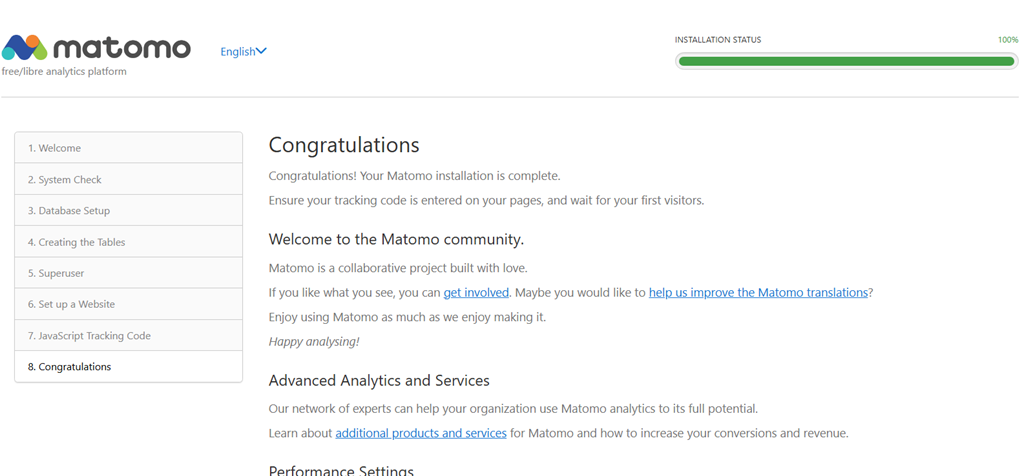
- Enter the database details created earlier.
- Create an admin account and configure settings as needed.
- Finish setup and log in to start using Matomo.

- Open a web browser and navigate to
-
Secure Your Installation
-
Enable HTTPS
Install Certbot and configure an SSL certificate:
sudo dnf install epel-release -y
sudo dnf install certbot python3-certbot-apache -y
sudo certbot --apache -d matomo.raddemo.host
-
Configure Firewall
Allow HTTP and HTTPS traffic:
sudo firewall-cmd --permanent --add-service=http
sudo firewall-cmd --permanent --add-service=https
sudo firewall-cmd --reload
-
Conclusion
You now know how to install Matomo on AlmaLinux VPS. You now have a powerful, self-hosted web analytics solution to track and analyze visitor data securely.
Don’t forget to update Matomo and your server regularly to ensure security and optimal performance.