This guide walks through the steps required to deploy Supabase on AlmaLinux VPS using Docker and Docker Compose, following a production-oriented setup suitable for self-hosting.
You’ll end with:
- A fully functional Supabase stack
- PostgreSQL, Auth, REST, Realtime, Storage, and Studio
- Reverse proxy with HTTPS (optional but recommended)
- Persistent data volumes
- Systemd-managed services
What is Supabase?
Supabase is an open-source Backend-as-a-Service (BaaS) that provides everything needed to build modern applications without managing custom backend infrastructure.
It is often described as an open-source alternative to Firebase, but it is built around a fully standard PostgreSQL database, giving you full data ownership and SQL power.
Open Source Model
Supabase is built entirely on open-source components, emphasizing transparency and portability. The company maintains repositories on GitHub for its core services, client libraries, and CLI tools, encouraging community contributions and independent hosting. This approach contrasts with closed BaaS providers by avoiding vendor lock-in.
Prerequisites
VPS Requirements
- AlmaLinux 8 or AlmaLinux 9
- 2 vCPU minimum (4 recommended)
- 4 GB RAM minimum (8 recommended)
- 40 GB+ SSD/NVMe storage
- Root or sudo access
Required Software
- Docker
- Docker Compose v2
- Git
- Open ports:
80,443,8000,5432(or restricted via firewall)

Compare AlmaLinux VPS Plans
How to Deploy Supabase on AlmaLinux VPS (Production-Ready Guide)
To deploy Supabase on AlmaLinux VPS, follow the steps below:
See Also: How to Install Zammad on AlmaLinux VPS (10-Minute Quick-Start Guide)
-
Update the System
Login via SSH and run the following commands:
dnf update -y && dnf install -y epel-release nano git curl wget firewalld && reboot
After reboot:
systemctl enable --now firewalld
-
Install Docker on AlmaLinux
dnf config-manager --add-repo https://download.docker.com/linux/centos/docker-ce.repo
dnf install -y docker-ce docker-ce-cli containerd.io docker-compose-plugin
systemctl enable --now docker
Verify:
docker version
docker compose version
-
Firewall Configuration
firewall-cmd --permanent --add-service=http
firewall-cmd --permanent --add-service=https
firewall-cmd --permanent --add-port=8000/tcp
firewall-cmd --reload
You can later restrict
3000once a reverse proxy is in place. -
Clone Supabase Self-Hosting Repo
mkdir -p /opt/supabase
cd /opt/supabase
git clone https://github.com/supabase/supabase.git
cd supabase/docker
Directory overview:
/opt/supabase/docker
├── docker-compose.yml
├── .env.example
├── volumes/
-
Configure Environment Variables
cp .env.example .env
Edit:
nano .env
Critical Values to Set
POSTGRES_PASSWORD=strong_password_here
JWT_SECRET=super_long_random_string
ANON_KEY=generate_jwt_anon
SERVICE_ROLE_KEY=generate_jwt_service
SITE_URL=https://supabase.example.com
API_EXTERNAL_URL=https://supabase.example.com
Generate secure secrets:
openssl rand -hex 32
-
Persistent Storage Volumes
Create directories:
mkdir -p volumes/{db,data,storage,functions}
chmod -R 755 volumes
These ensure PostgreSQL and Supabase data persist across restarts.
-
Start Supabase Stack
docker compose pull
docker compose up -d
Monitor logs:
docker compose logs -f
Services started include:
- PostgreSQL
- GoTrue (Auth)
- PostgREST
- Realtime
- Storage API
- Kong API Gateway
- Supabase Studio
-
Access Supabase Studio
Default Studio URL:
http://SERVER_IP:8000
Login using:
- Database password from
.env - Service role key
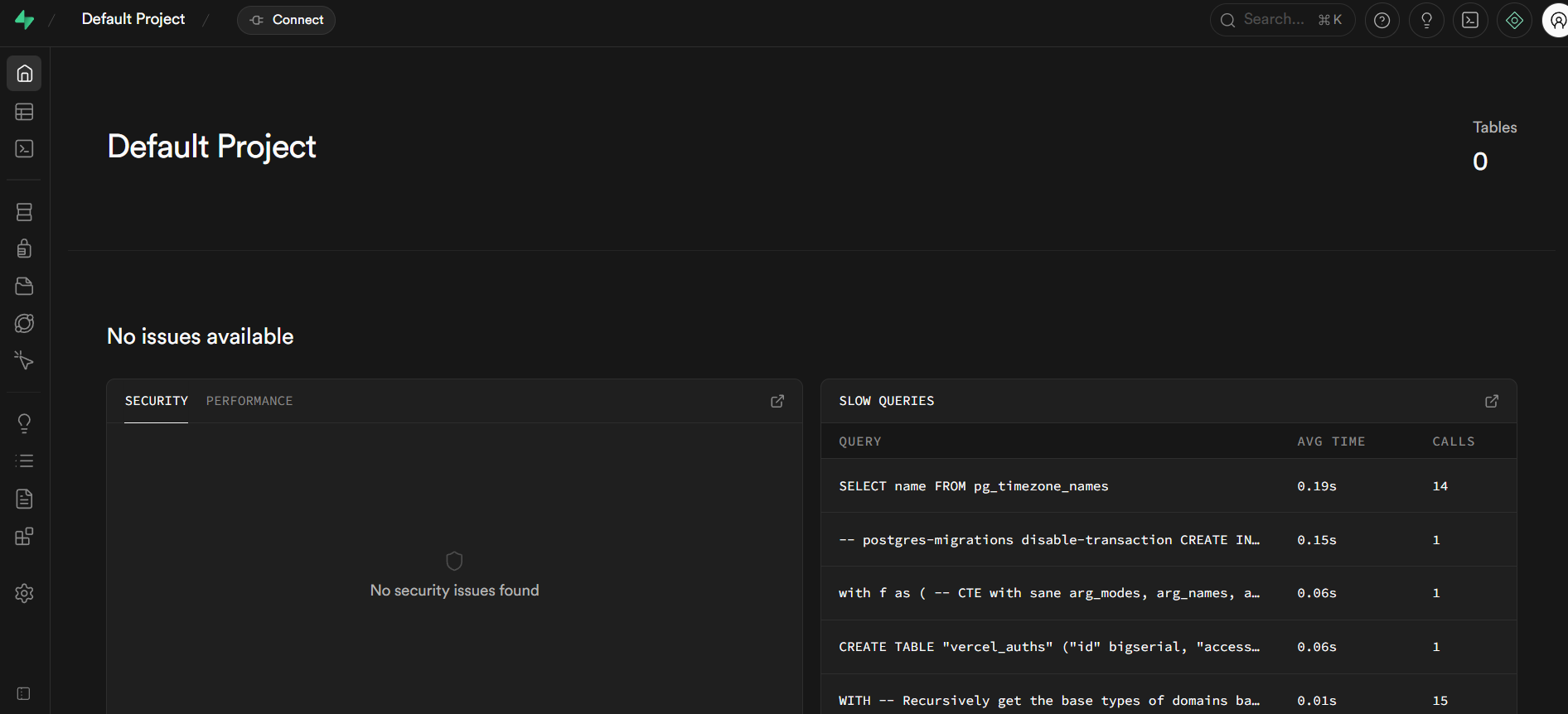
Supabase default project web interface - Database password from
-
(Recommended) Reverse Proxy with Nginx + HTTPS
-
Install Nginx & Certbot
dnf install -y nginx certbot python3-certbot-nginx
systemctl enable --now nginx
-
Nginx Config
nano /etc/nginx/conf.d/supabase.conf
server {
    listen 80;
    server_name supabase.example.com;

    location / {
        proxy_pass http://127.0.0.1:8000;
        proxy_set_header Host $host;
        proxy_set_header X-Real-IP $remote_addr;
    }
}
Reload:
nginx -t && systemctl reload nginx
-
Enable HTTPS
certbot --nginx -d supabase.example.com
-
-
Secure PostgreSQL (Optional but Recommended)
Restrict external DB access:
firewall-cmd --permanent --remove-port=5432/tcp
firewall-cmd --reload
Access PostgreSQL internally:
docker exec -it supabase-db psql -U postgres
-
Auto-Start on Boot (Systemd)
Docker already handles this, but ensure:
systemctl enable docker
Optional systemd wrapper:
nano /etc/systemd/system/supabase.service
[Unit]
Description=Supabase Stack
After=docker.service
Requires=docker.service

[Service]
Type=oneshot
RemainAfterExit=yes
WorkingDirectory=/opt/supabase/docker
ExecStart=/usr/bin/docker compose up -d
ExecStop=/usr/bin/docker compose down
TimeoutStartSec=0

[Install]
WantedBy=multi-user.target
Enable:
See Also: Command Line Tools for Managing Linux Server
systemctl daemon-reload
systemctl enable supabase
-
Backups
PostgreSQL Backup Example
docker exec supabase-db pg_dumpall -U postgres | gzip > /root/supabase_backup_$(date +%F).sql.gz
Automate with cron and off-server storage.
-
Updating Supabase
cd /opt/supabase/docker
git pull
docker compose pull
docker compose up -d
-
Common Troubleshooting
Issue Fix Studio won’t load Check port 8000 & Kong logs JWT errors Regenerate JWT_SECRET& keysAuth not working Verify SITE_URLDB won’t start Check volume permissions Logs:
docker compose logs --tail=100
Final Notes
This deployment gives you full control over your backend stack—ideal for privacy-focused apps, SaaS platforms, or internal tooling. AlmaLinux provides long-term stability, while Supabase delivers Firebase-like features without vendor lock-in.
Conclusion
You now know how to deploy Supabase on AlmaLinux VPS.