

This article will provide a guide demonstrating how to backup WordPress Site to Microsoft OneDrive. This feature is available for all WordPress Hosting plans.

Backup WordPress Site to Microsoft OneDrive
This page will guide you to add Microsoft OneDrive as your backup location in Softaculous.
Note : Backup on OneDrive feature has been added to all WordPress Hosting plans.
The following guide will show you how to add the OneDrive backup location in Softaculous.
- Login to your cPanel account.
- Go to Softaculous Enduser -> Edit Settings -> Click on Add Backup Location.
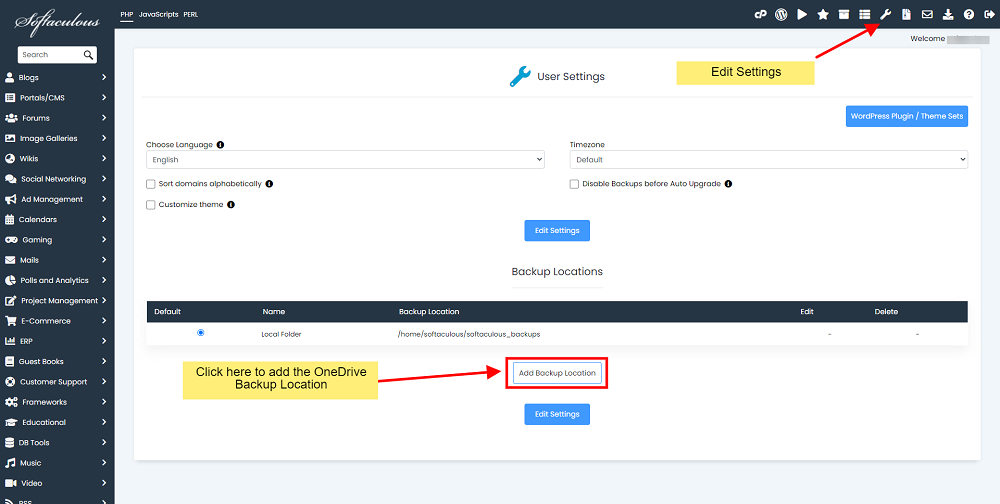
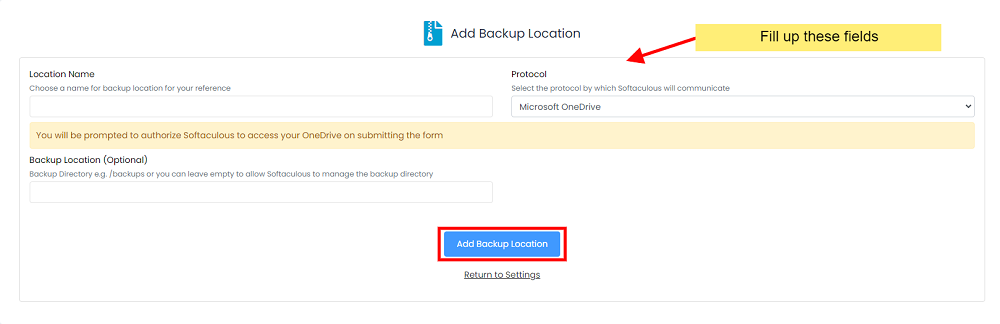
Save 50% off 25x faster wordpress hosting - backup wordpress site to microsoft onedrive - Choose a Location Name for your reference.
- Select the Protocol as OneDrive from the dropdown.
- Backup Location : Specify the location of the directory in which Softaculous should create the backups. E.g. /backups
- Click on Add Backup Location button to add the location in Softaculous.
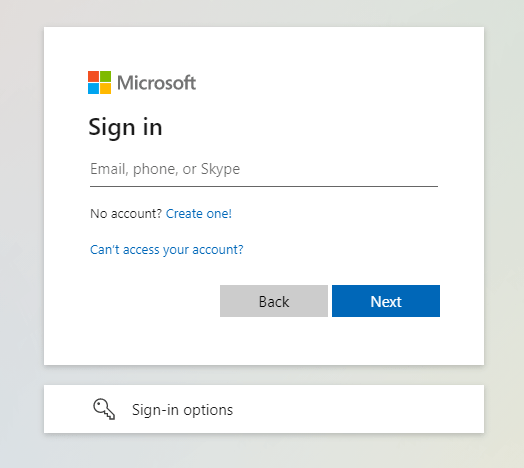
Save 50% off 25x faster wordpress hosting - backup wordpress site to microsoft onedrive - Enter your Microsoft Account’s Login Details.
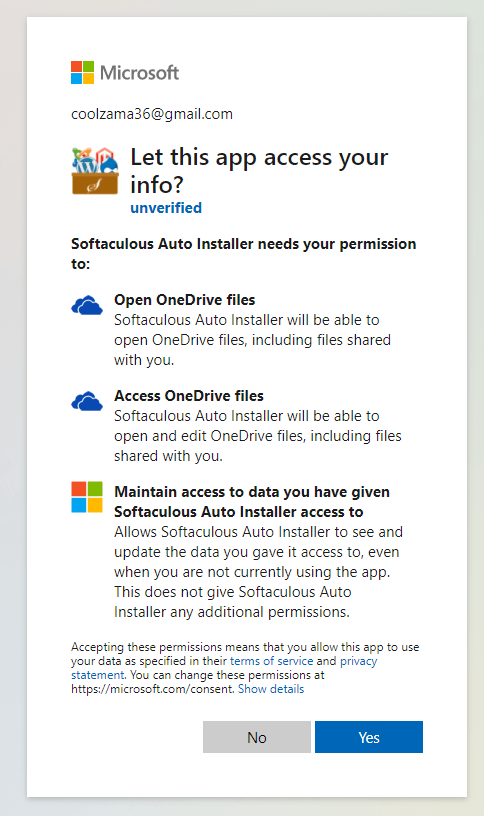
Save 50% off 25x faster wordpress hosting - backup wordpress site to microsoft onedrive - You will be asked to either allow or deny access to the application. Click on “Yes“.
Save 50% off 25x faster wordpress hosting - backup wordpress site to microsoft onedrive - That’s it! Once the backup location is added you can choose to backup your installation to that location from the Backup page.
Conclusion
You now know how to backup WordPress site to Microsoft OneDrive.






[…] Backup WordPress Site to Microsoft OneDrive […]