This article provides a step-by-step how-to guide to deploy n8n on Ubuntu VPS.
What is n8n?
n8n is an open-source, self-hostable workflow automation platform—similar to Zapier or Make.com, but far more flexible because you can run it on your own server and build fully customizable automations.
What n8n Does
n8n lets you:
- Create automated workflows using a visual drag-and-drop editor
- Connect APIs from hundreds of services (webhooks, CRMs, databases, email, cloud apps, etc.)
- Run background tasks (cron jobs, scheduled scripts, daily digests)
- Process data with built-in JavaScript functions
- Handle complex logic, branching, loops, error handling, variables, and more
- Host it yourself on a VPS, Docker, Kubernetes, or local machine
Why People Use n8n
- Open-source — unlimited workflows without expensive per-task pricing
- Extremely expandable — create your own custom nodes and integrations
- Self-hostable — keeps your data private and under your control
- Event-driven — ideal for incoming webhooks and API integrations
- Code-friendly while remaining beginner-friendly
Examples of What You Can Build
- Webhook intake → Transform JSON → Push to CRM
- Scrape RSS feeds → Filter → Auto-post to social media
- Database event → Send Slack/Telegram alerts
- Cron job → Query API → Save to Google Sheets
- Stripe order → Generate PDF invoice → Email client
- Custom ETL pipelines between systems
How n8n is Typically Deployed
Most common setup:
- Docker container (recommended)
- Reverse proxy (Nginx/Caddy/Traefik)
- HTTPS / Let’s Encrypt
- Persistent storage volume
- PostgreSQL (optional, for scale)
In Short
n8n = your own private Zapier, with no limits.
This setup will use:
- Docker + Docker Compose
- A dedicated external volume for persistence
- Optional Traefik/HTTPS support
- A .env file to manage environment variables
Overview
n8n is a fair-code licensed automation platform, ideal for receiving, processing, and triggering workflows via webhooks, API integrations, and more.
Prerequisites
Ensure you have Docker installed on your server or VPS:
docker --version
docker compose version
If not, install Docker and Docker Compose:
# Docker
curl -fsSL https://get.docker.com | bash

# Docker Compose v2 (plugin)
sudo apt install docker-compose-plugin -y

Compare Ubuntu VPS Plans
How to Deploy n8n on Ubuntu VPS
To deploy n8n on Ubuntu VPS, follow the steps outlined below:
-
Create Project Directory
mkdir -p ~/n8n-docker
cd ~/n8n-docker
-
Create
.envFileCreate a
.envfile to store sensitive environment variables.nano .env
Paste the following:
# n8n config
N8N_BASIC_AUTH_ACTIVE=true
N8N_BASIC_AUTH_USER=admin
N8N_BASIC_AUTH_PASSWORD=supersecurepassword

# Timezone
TZ=America/Chicago

# External hostname for webhook URLs
N8N_HOST=your.domain.com
N8N_PORT=5678
WEBHOOK_TUNNEL_URL=https://your.domain.com

# Database (optional; use SQLite or Postgres)
# DB_TYPE=postgresdb
# DB_POSTGRESDB_HOST=postgres
# DB_POSTGRESDB_PORT=5432
# DB_POSTGRESDB_DATABASE=n8n
# DB_POSTGRESDB_USER=n8n
# DB_POSTGRESDB_PASSWORD=n8npassword
Change credentials and
N8N_HOSTas needed. -
Create
docker-compose.ymlnano docker-compose.yml
Paste the following:
See Also: Free Website Migration – Hassle-Free & Zero Downtime!
version: "3.8" services: n8n: image: n8nio/n8n:latest container_name: n8n restart: unless-stopped ports: - "5678:5678" environment: - TZ=${TZ} - N8N_BASIC_AUTH_ACTIVE=${N8N_BASIC_AUTH_ACTIVE} - N8N_BASIC_AUTH_USER=${N8N_BASIC_AUTH_USER} - N8N_BASIC_AUTH_PASSWORD=${N8N_BASIC_AUTH_PASSWORD} - N8N_HOST=${N8N_HOST} - N8N_PORT=${N8N_PORT} - WEBHOOK_TUNNEL_URL=${WEBHOOK_TUNNEL_URL} volumes: - n8n_data:/home/node/.n8n networks: - n8nnet volumes: n8n_data: networks: n8nnet: driver: bridge -
Enable HTTPS (Reverse Proxy via Traefik or Nginx)
To enable HTTPS:
- Add a reverse proxy service like Traefik or Nginx Proxy Manager
- Point your domain DNS to your VPS IP
- Use Let’s Encrypt for free TLS
-
Launch n8n
docker compose up -d
Check the logs:
docker compose logs -f
-
Access Your n8n Instance
Open a browser and go to:
http://your-server-ip:5678
Or (if using a domain):
https://your.domain.com
Use the username/password you set in
.env.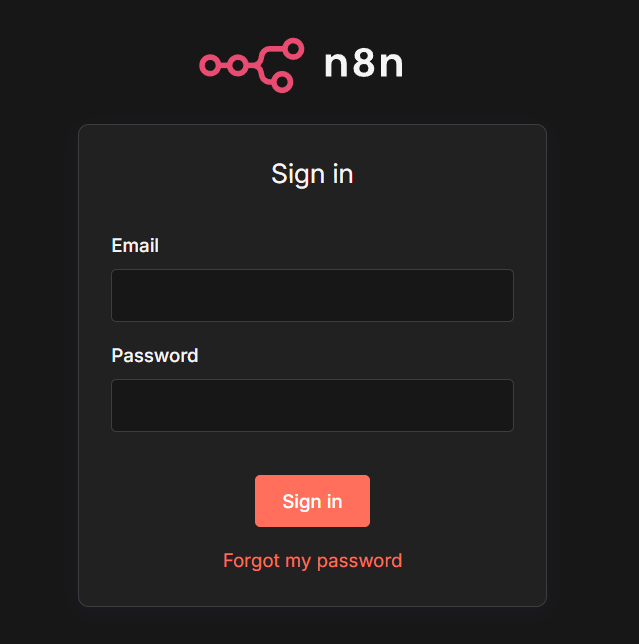
Navigate to n8n using your browser to login. -
Webhook URLs in Production
Make sure to use the public-facing URL for webhook calls:
https://your.domain.com/webhook/{path}If you don’t specify
N8N_HOSTandWEBHOOK_TUNNEL_URL, n8n will default to local addresses (not suitable for production). -
Backups
Your workflow data is saved in the Docker volume
n8n_data. To back it up:docker run --rm --volumes-from n8n -v $(pwd):/backup ubuntu tar czf /backup/n8n-backup.tar.gz /home/node/.n8n
Notes
- SQLite is default for persistence. Use Postgres for team setups or high availability.
- n8n is stateless, so make sure environment variables are backed up.
- You can also set up email alerts, Slack notifications, or cron-based triggers.
Here’s a complete HTTPS-enabled Docker deployment of n8n using Let’s Encrypt, including a ready-to-import workflow for parsing incoming webhooks.
PART 1: HTTPS-Enabled Deployment with Let’s Encrypt (via Traefik)
This guide uses Traefik reverse proxy with automatic SSL (Let’s Encrypt), all in Docker.
Prerequisites
- DNS A record pointed to your VPS (e.g.,
n8n.example.com → your.server.ip) - Docker + Docker Compose
- Ports 80 and 443 open
Project Structure
mkdir -p ~/n8n-traefik
cd ~/n8n-traefik
.env (Environment Variables)
# n8n credentials
N8N_BASIC_AUTH_ACTIVE=true
N8N_BASIC_AUTH_USER=admin
N8N_BASIC_AUTH_PASSWORD=SuperSecurePassword123

# Domain
DOMAIN=n8n.example.com
EMAIL=your@email.com
docker-compose.yml
version: '3.8'

services:
  traefik:
    image: traefik:v2.11
    container_name: traefik
    restart: unless-stopped
    command:
      - "--entrypoints.web.address=:80"
      - "--entrypoints.websecure.address=:443"
      - "--providers.docker=true"
      - "--providers.docker.exposedbydefault=false"
      - "--certificatesresolvers.le.acme.email=${EMAIL}"
      - "--certificatesresolvers.le.acme.storage=/letsencrypt/acme.json"
      - "--certificatesresolvers.le.acme.tlschallenge=true"
      - "--api.dashboard=true"
    ports:
      - "80:80"
      - "443:443"
    volumes:
      - "./letsencrypt:/letsencrypt"
      - "/var/run/docker.sock:/var/run/docker.sock:ro"
    networks:
      - n8nnet

  n8n:
    image: n8nio/n8n:latest
    container_name: n8n
    restart: unless-stopped
    environment:
      - N8N_BASIC_AUTH_ACTIVE=${N8N_BASIC_AUTH_ACTIVE}
      - N8N_BASIC_AUTH_USER=${N8N_BASIC_AUTH_USER}
      - N8N_BASIC_AUTH_PASSWORD=${N8N_BASIC_AUTH_PASSWORD}
      - N8N_HOST=${DOMAIN}
      - N8N_PORT=443
      - WEBHOOK_URL=https://${DOMAIN}
      - VUE_APP_URL_BASE_API=https://${DOMAIN}
      - TZ=America/Chicago
    volumes:
      - n8n_data:/home/node/.n8n
    labels:
      - "traefik.enable=true"
      - "traefik.http.routers.n8n.rule=Host(`${DOMAIN}`)"
      - "traefik.http.routers.n8n.entrypoints=websecure"
      - "traefik.http.routers.n8n.tls.certresolver=le"
      - "traefik.http.services.n8n.loadbalancer.server.port=5678"
    networks:
      - n8nnet

volumes:
  n8n_data:

networks:
  n8nnet:
    driver: bridge
Launch the Stack
docker compose up -d
Your n8n instance should now be accessible at:
See Also: How to Migrate from SiteGround to Rad Web Hosting Easily (in 30 Minutes or Less)
https://n8n.example.com
Login with your username/password from .env.
PART 2: Ready-to-Import n8n Webhook Workflow
This workflow listens for a POST webhook with JSON input, parses the data, and responds with a confirmation.
Import JSON
Here’s a minimal n8n workflow you can import:
Click to Expand JSON
{
  "name": "Webhook Listener",
  "nodes": [
    {
      "parameters": {
        "path": "incoming-webhook",
        "options": {}
      },
      "id": "WebhookTrigger",
      "name": "Webhook Trigger",
      "type": "n8n-nodes-base.webhook",
      "typeVersion": 1,
      "position": [240, 300],
      "webhookId": "custom-id"
    },
    {
      "parameters": {
        "functionCode": "return [{ json: {\n  message: \"Webhook received!\",\n  input: $json\n} }];"
      },
      "id": "Function",
      "name": "Respond",
      "type": "n8n-nodes-base.function",
      "typeVersion": 1,
      "position": [480, 300]
    }
  ],
  "connections": {
    "Webhook Trigger": {
      "main": [
        [
          {
            "node": "Respond",
            "type": "main",
            "index": 0
          }
        ]
      ]
    }
  },
  "active": false
}
How to Import:
- Log in to
https://n8n.example.com - Go to Workflows > Import
- Paste the JSON above or upload as
.json - Activate the workflow
Now test it:
curl -X POST https://n8n.example.com/webhook/incoming-webhook \
  -H "Content-Type: application/json" \
  -d '{"name":"Larry","project":"Webhook Parser"}'
Response:
{
  "message": "Webhook received!",
  "input": {
    "name": "Larry",
    "project": "Webhook Parser"
  }
}
Conclusion
You now know how to deploy n8n on Ubuntu VPS.