This article provides a guide to configure OpenLiteSpeed as a reverse proxy for Metabase.
What is OpenLiteSpeed?
OpenLiteSpeed Web Server is great for building and deploying web applications. The WebAdmin Console enables you to quickly configure features that allow you to deliver a fast web application that your users will love.
What is Metabase?
Metabase is a business intelligence web application that can be deployed on an OpenLiteSpeed Web Server. It is a java-based web app that can connect to almost any database and has a built-in question builder tool that allows you to get intelligent insights on your data.
In this guide, you will learn how to install and configure OpenLiteSpeed as a reverse proxy for Metabase. That means the web server will sit in front of Metabase and intercept requests made by clients. Upon completion of this guide you will have a business intelligence web based application powered by OpenLiteSpeed web server.
Below are 7 steps covered in this tutorial:
- Installing OpenLiteSpeed with MariaDB
- Installing Java
- Creating a MariaDB database
- Downloading Metabase
- Creating a
systemdconfiguration file for Metabase - Configuring a Let’s Encrypt SSL Certificate
- Completing the post-installation setup
Requirements
Here is what you will need to complete this setup:
- An SSH client such as Putty or the macOS terminal app.
- A server running a Debian-based operating system such as Ubuntu VPS
- A fully qualified domain name pointing to the public IP address of your server.

Compare Ubuntu VPS Plans
Configure OpenLiteSpeed as a Reverse Proxy for Metabase
To configure OpenLiteSpeed as a reverse proxy for Metabase, follow the steps below:
-
Install OpenLiteSpeed with MariaDB
The first step is to install OpenLiteSpeed. We will use the 1-click installation script, which is a single command that will install OpenLiteSpeed, set up the virtualhost, add the reverse proxy configuration and install MariaDB.
On a newly deployed Debian-based server, run the command below to install OpenLiteSpeed with a reverse proxy configuration:
bash <( curl -k https://raw.githubusercontent.com/litespeedtech/ols1clk/master/ols1clk.sh) --proxy-c --pure-mariadb
This command will automatically create a reverse proxy configuration using the example virtualhost, and install MariaDB.
Log in to the OpenLiteSpeed WebAdmin Console. Click Server Configuration > External App.
Click Edit on the
Web Serverexternal app, update Address*tohttp://127.0.0.1:3000, and click Save.Restart OpenLiteSpeed for the changes to take effect.
-
Install Java
The second step is to install the Java development kit (JDK), and the Java runtime environment (JRE). Run the command below to install:
See Also: How to Install Pleroma on Ubuntu VPS (5 Minute Quick-Start Guide)
sudo apt-get install openjdk-11-jdk openjdk-11-jre -y
-
Create a MariaDB database
The third step is to create a MariaDB database for Metabase.
Run the commands below to connect to the MariaDB shell and create a new database:
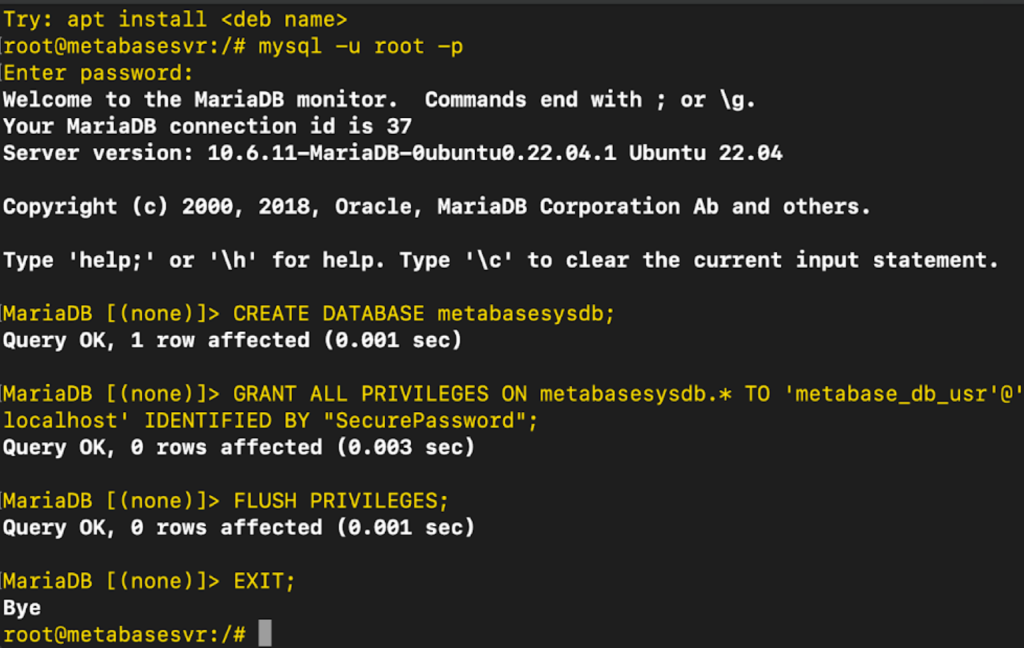
mysql -u root -p
CREATE DATABASE metabasesysdb;
GRANT ALL PRIVILEGES ON metabasesysdb.* TO 'metabase_db_usr'@'localhost' IDENTIFIED BY "SecurePassword";
FLUSH PRIVILEGES;
EXIT;
-
Download Metabase
You have successfully installed OpenLiteSpeed and added reverse proxy configuration. Follow the next few steps to start using Metabase with OpenLiteSpeed.
Create a folder for Metabase in the
/optdirectory, and download the latest version of Metabase from the official download page:sudo mkdir /opt/metabase cd /opt/metabase wget https://downloads.metabase.com/v0.45.2/metabase.jar
Change the owner of the
/opt/metabasedirectory and all files in this directory tonobodyandnogroupby running this command:chown -R nobody:nogroup /opt/metabase
Set the permissions of the
/opt/metabasedirectory and all files in the directory:chmod -R 755 /opt/metabase
-
Create a
systemdconfiguration file.To ensure Metabase is always running on your server, and to simplify stopping and starting the business intelligence web app, you can create a
systemdconfiguration file. Run the commands below to create a service file in the/etc/systemd/systemdirectory:sudo apt install nano sudo nano /etc/systemd/system/metabase.service
Edit the
metabase.servicefile, and copy and paste the following configuration below into it:[Unit] Description=Metabase Business Intelligence Web App Powered By OpenLiteSpeed Web Server [Service] WorkingDirectory=/opt/metabase/ ExecStart=/usr/bin/java -jar /opt/metabase/metabase.jar User=nobody Type=simple Restart=on-failure RestartSec=10 [Install] WantedBy=multi-user.target
Save the file and exit out of it.
Reload the system daemon, start the Metabase service, and set it to start automatically at system boot:
systemctl daemon-reload
systemctl start metabase
systemctl enable metabase
You also need to ensure the newly created Metabase service is marked as active and running. Run the command
systemctl status metabase
If Metabase is active and running, the command will return the following output:
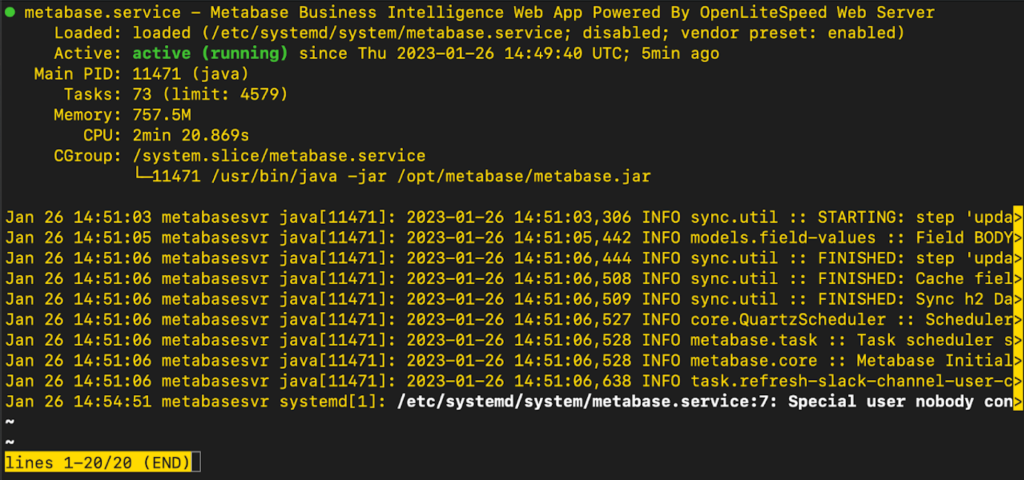
metabase.service - Metabase Business Intelligence Web App Powered By OpenLiteSpeed Web Server Loaded: loaded (/etc/systemd/system/metabase.service; Active: active (running) -
Configure a Let’s Encrypt SSL Certificate.
The next step is to configure a Let’s Encrypt SSL Certificate. This ensures that you always access Metabase using a secure HTTPS connection. Follow the steps below:
See Also: 📶 How to Reduce cPanel Server Load
Install the certbot utility:
sudo apt-get install certbot -y
Generate the SSL certificate by following the instructions in the OpenLiteSpeed KB.
-
Complete the post installation setup
Open a new browser window and enter the domain name for the Metabase server in the browser address bar.
You will see the Metabase welcome page. Click Let’s get started.
Choose your preferred language and click Next
Enter your personal details and ensure you set a secure password. Click Next, select
I’ll add my data laterand click Next.Click Finish, and click Take me to Metabase. This will open the dashboard where you can perform business intelligence tasks using the built-in features.
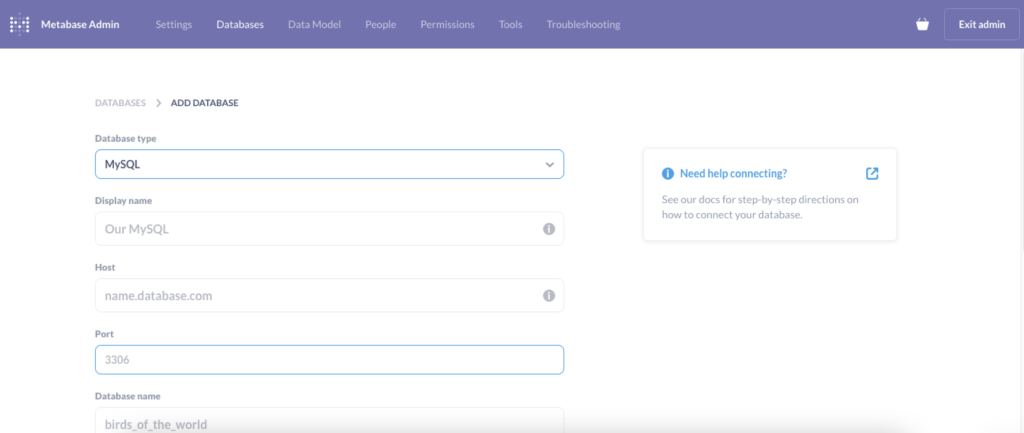
You can also configure the database that you created on Step 3. Click Add your own data to open the Add Database wizard.
Select the type of database you would like to add on the Database type drop down, configure your database details, and click Save.
Conclusion
You now know how to configure OpenLiteSpeed as a reverse proxy for Metabase.