This article provides a guide to deploy Cosmos Cloud on Ubuntu VPS.
What is Cosmos Cloud?
Cosmos Cloud is a self-hosted platform-as-a-service (PaaS) that lets you deploy, manage, and monitor applications (especially Docker-based apps) through a clean web UI. Think of it as a lightweight alternative to tools like Portainer or Coolify, but with built-in reverse proxy, SSL, and app marketplace features.
✅ Requirements
- Ubuntu 22.04 or Ubuntu 24.04 VPS
- Root or sudo access
- Minimum:
- 1 vCPU
- 1 GB RAM (2 GB recommended)
- 10 GB disk
- Domain or subdomain (recommended)

Compare Ubuntu VPS Plans
How to Deploy Cosmos Cloud on Ubuntu VPS
To deploy Cosmos Cloud on Ubuntu VPS, follow the steps provided below:
-
Update System
apt update && apt upgrade -y
Install essentials:
apt install -y curl wget git ufw
-
Install Docker
Cosmos Cloud runs entirely on Docker.
curl -fsSL https://get.docker.com | bash
Enable and start Docker:
systemctl enable docker
systemctl start docker
Verify:
docker --version
-
(Optional) Configure Firewall
ufw allow OpenSSH
ufw allow 80
ufw allow 443
ufw allow 4242
ufw enable
-
Deploy Cosmos Cloud
Run the official install command:
curl -fsSL https://cosmos-cloud.io/get.sh | sudo -E bash -s
This script will:
- Pull Cosmos Cloud Docker image
- Configure reverse proxy
- Start the Cosmos container
- Expose UI on port 4242
-
Access Cosmos Dashboard
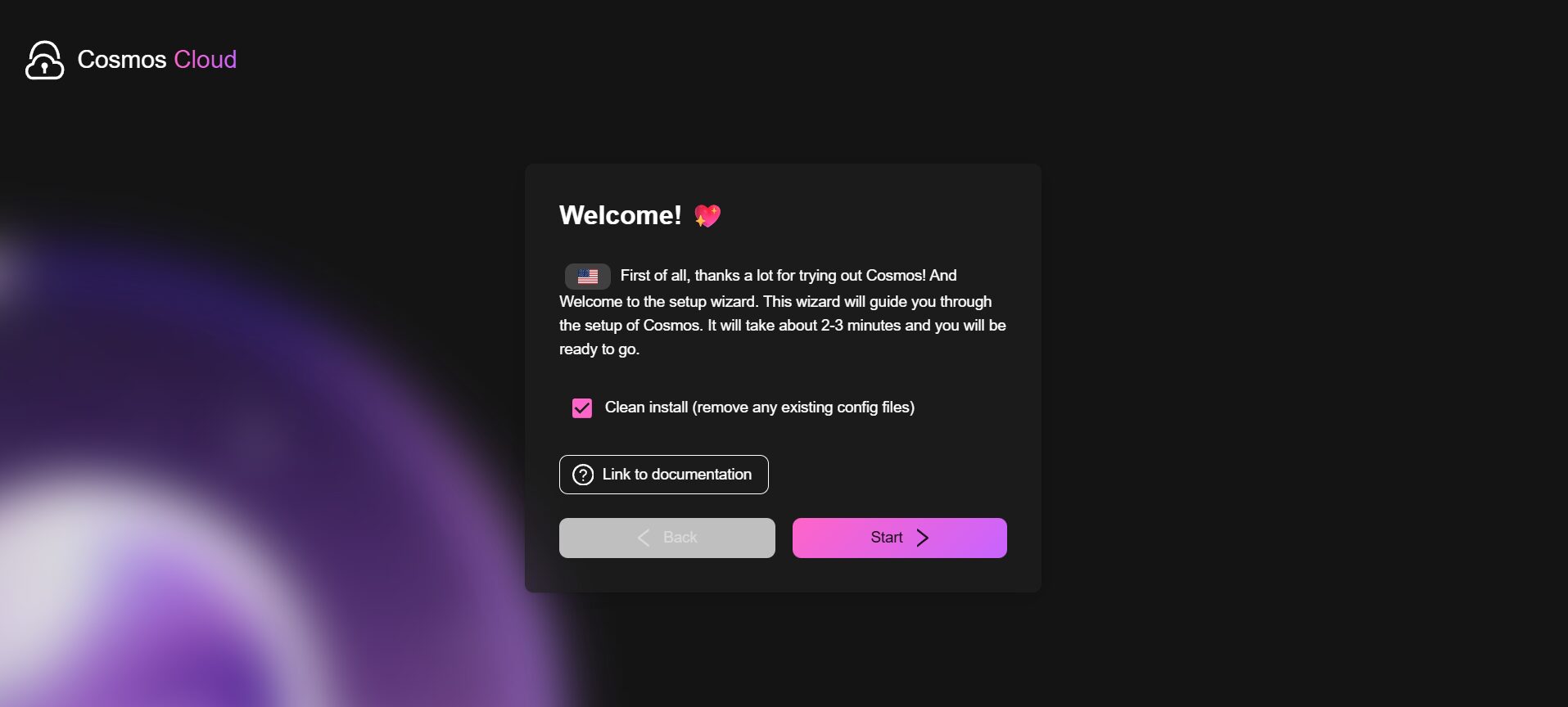
Cosmos cloud welcome screen Open your browser:
http://YOUR_SERVER_IP:4242
You’ll be prompted to:
- Create admin account
- Set password
- Configure initial settings

Cosmos cloud dashboard -
Set Up Domain + SSL (Recommended)
Inside Cosmos UI:
- Go to Settings → Domains
- Add your domain (e.g.,
cosmos.yourdomain.com) - Enable:
- Reverse proxy
- Automatic SSL (Let’s Encrypt)
Point your DNS:
A record → YOUR_SERVER_IP
-
Deploy Your First App
Cosmos supports Docker Compose apps.
Example: Deploy Nginx
- Go to Apps → Create App
- Choose Docker Compose
- Paste:
version: "3" services: web: image: nginx:latest ports: - "8080:80" - Click Deploy
Access:
http://YOUR_SERVER_IP:8080
-
Use Built-in Reverse Proxy
Instead of exposing ports manually:
- Edit your app
- Enable HTTP routing
- Assign domain:
app.yourdomain.com
- Enable SSL
Now your app is available at:
https://app.yourdomain.com
-
Monitoring & Management
Cosmos provides:
- Container logs
- Resource usage
- Restart policies
- One-click updates
- App marketplace
-
Secure Your Deployment
Change default port (optional)
Edit Docker config:
docker ps
docker inspect cosmos
Or redeploy with custom port mapping.
Enable Fail2Ban (recommended)
apt install fail2ban -y
Regular updates
docker pull ghcr.io/cosmos-cloud/cosmos:latest
docker restart cosmos
-
Backup Strategy
Backup volumes:
See Also: How to Install and Run Mail-in-a-Box on Ubuntu VPS
docker volume ls
Example:
docker run --rm -v cosmos_data:/data -v $(pwd):/backup busybox tar czf /backup/cosmos-backup.tar.gz /data
⚡ Advanced Tips
Use Cosmos as a full PaaS
You can deploy:
- WordPress
- Node.js apps
- Laravel
- Static sites
- APIs
Multi-app hosting
Cosmos handles:
- Routing
- SSL
- Subdomains
- App isolation
Replace traditional stack
You can avoid:
- Manual Nginx configs
- Certbot setup
- Separate Docker tools
🧩 Troubleshooting
Port already in use
lsof -i :4242
Docker not running
systemctl restart docker
Cannot access UI
Check:
docker logs cosmos
🎯 Summary
Cosmos Cloud turns your Ubuntu VPS into a self-hosted PaaS with:
- One-command install
- Built-in reverse proxy + SSL
- App deployment via Docker Compose
- Clean UI for management
Conclusion
You now know how to deploy Cosmos Cloud on Ubuntu VPS.