This post provides a guide for how to launch a FreeBSD 15 VPS server from Rad Web Hosting.
How to Launch a FreeBSD 15 VPS Server
Well, FreeBSD 15.0 is now available! If you’re a BSD user, you probably want to get your hands on it quickly. So, this guide aims to help you accomplish that, without delay!
What’s New in FreeBSD 15.x?
FreeBSD 15.0-RELEASE contains a summary of the changes made to the FreeBSD base system on the 15-STABLE development line. For more on FreeBSD 15, you can read the official release announcement.
Here’s a comprehensive summary of what’s new and notable in FreeBSD 15.x, centered around the newly released FreeBSD 15.0 and the overall 15-stable branch:
🚀 Major Changes & Features in FreeBSD 15.x
-
📦 Packaged Base System (“pkgbase”)
FreeBSD 15 introduces a new way to install and manage the base OS using the
pkg(8)package manager. With this method, the entire base system (kernel, core utilities, libraries) can be installed and updated through pkg, simplifying updates and aligning FreeBSD with modern package-oriented systems. This is offered as a technology preview in 15.0 and is expected to become the default in FreeBSD 16. Traditional distribution sets withfreebsd-updateare still available throughout 15.x. -
💻 Reproducible and Secure Builds
Version 15.0 marks the achievement of reproducible builds, meaning binaries can be rebuilt from source to match published binaries bit-for-bit. This enhances supply chain security and trust in distributed binaries. Build artifacts (install images, VM images) are also now built without requiring root privileges.
-
🆕 Kernel Improvements
- Native
inotify(2)support, a Linux-style file system event notification API that improves compatibility with cross-platform tooling. - Numerous driver updates for networking (e.g., Intel ICE), Wi-Fi (Intel/Realtek/Mediatek), graphics, and power management with better suspend/resume support.
- Ongoing cleanup of legacy subsystems (e.g., AGP bus driver deprecated).
- Native
-
🧠 Hardware & Architecture Support
- Support continues for current major architectures: amd64, aarch64, armv7, powerpc64/le, and riscv64. Many obsolete 32-bit ports such as i386 and armv6 have been deprecated on 15.x.
-
☁️ Cloud & Container Enhancements
- FreeBSD 15 release artifacts include OCI-compatible container images, expanding FreeBSD’s usability in cloud and container workflows.
- Improvements in builds for major cloud environments (Google Cloud and Azure).
- Base cloud (EC2) images now boot significantly faster and are available in “small” footprint variants.
-
🗓️ Release Process & Lifecycle
FreeBSD 15.x introduces a more predictable release cadence (roughly quarterly minor releases) and a shorter stable support period (about four years after .0 release) compared to older stable branches.
-
🧩 User Experience & Desktop
- Installer (bsdinstall) includes improved firmware handling, helping installation on laptops and hardware with Wi-Fi.
- Desktop ecosystem improvements (e.g., Lumina enhancements and better driver support) make FreeBSD more approachable beyond servers.
-
🔧 OpenZFS & Filesystem Improvements
FreeBSD 15.0 ships with updated OpenZFS 2.4.x (release candidate), which brings enhancements like performance improvements, better encryption, and newer feature sets compatible with broader platforms.
Please note that this is not an exhaustive list of all the changes in FreeBSD 15.0-RELEASE.
VPS Server Environment
For this guide, we will be using the following server environment:
- Plan: SSD-VPS-1
- CPU: 1 Core
- RAM: 1 GB RAM
- Disk: 16 GB SSD
- Network: 1Gbps
- 1 IPv4 (Public)
- /64 IPv6 (Public)
- View more: FreeBSD VPS Servers

Steps to Install FreeBSD 15 on Your VPS
In order to launch a FreeBSD 15 VPS server, follow the steps below:
- Order a cheap VPS server.
- Grab your login details from the VPS welcome email, which should arrive in your inbox within 30 seconds of order completion. View this guide to find this email in your Rad Web Hosting account.
- Login to the cloud panel using the credentials found in the Welcome Email.
- Navigate to your new VPS using the side menu (Cloud Panel Home -> List VPS -> Click the “>” button to manage VPS).
- Navigate to the “VPS Configuration” interface (VPS Manager -> Settings -> VPS Configuration).
- Under the “Boot Order” options, move the “CDROM1” disk to the top position to load this media upon reboot.

- Power down the VPS.

- Start the VPS.

- Click VNC Console.

- Collect VNC details.

- Open your preferred VNC client and access the VPS console.
- Once connected, choose the “Install” option from the FreeBSD Installer welcome screen.

- Set keymap.

- Now, set your preferred hostname.

- If you’re using the ISO provided by Rad Web Hosting, you’ll be starting from the “-bootonly” disk, so you’ll want to follow the prompts to complete the installation from the official repository. Alternatively, view this guide for instruction to upload any custom ISO media.

- Select Distribution.

- Choose Network Installation.

- Use DHCP.

- Configure IPv6 networking.
- Next, configure the DNS resolvers. If unsure, we recommend using “8.8.8.8” and “8.8.4.4” (Google’s public DNS).

- FreeBSD 14 supports ZFS file system, so configure the ZFS pool details. Configure disk partitioning.

- Use entire disk.

- Review disk setup.

- Choose mirror location.

- Now, the server will fetch distribution files from the selected mirror.

- Set a root password.

- Set time zone.

- Set date.

- Configure services to start on boot.

- Configure system hardening.

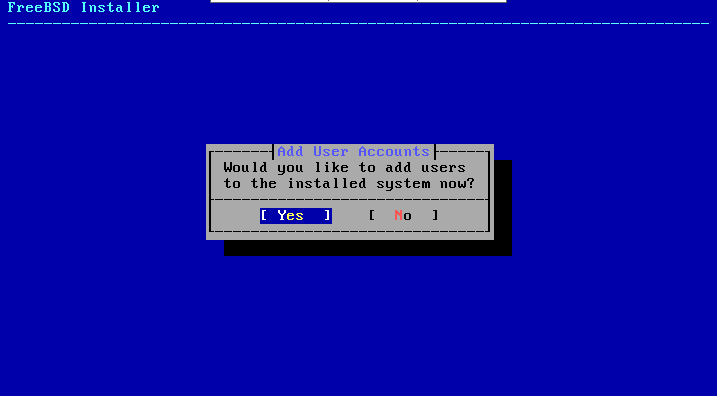
- Add users.
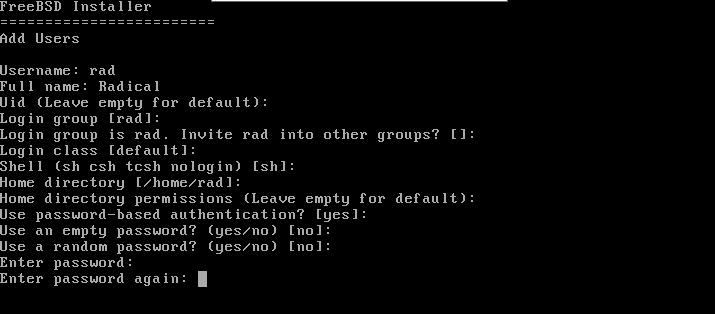
- User configuration.
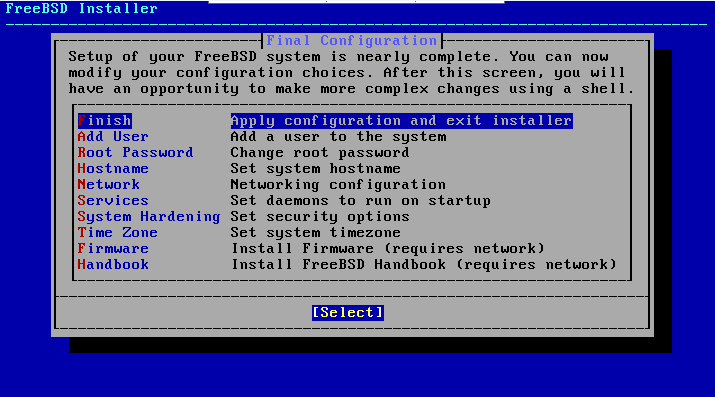
- Final Configuration.
- Manual Configuration.

- Upon completion, reboot the server when prompted.

- Welcome screen.

- Select “Live System”.

- Login to FreeBSD.

- Access FreeBSD 15 system.

- Now, head back to the VPS manager interface and update the boot order that was previously modified in Step 6. Set the VPS to boot from the “DISK1” (move “DISK1” to the top position).

- This concludes the guide. Congratulations on successful launch of your new FreeBSD 15 VPS server!

Conclusion
You now know how to launch a FreeBSD 15 VPS server using your Rad Web Hosting account!
Have a question about VPS services? Contact our support team or use the live chat on our website 24/7!