This article provides a guide to deploy Netbird on Debian VPS.
What is Netbird?
Netbird is an open-source, WireGuard-based overlay network platform that simplifies secure, peer-to-peer connectivity between devices. It enables Zero Trust Network Access (ZTNA) without complex firewall rules or VPN gateways, automatically connecting computers, servers, and cloud resources. It can be self-hosted or used via their cloud service.
Deploy Netbird on Debian VPS
This is a complete step-by-step guide demonstrating how to deploy Netbird on Debian VPS.
Prerequisites
- A Debian VPS with a public IP address (minimum: 1 vCPU, 2 GB RAM, 20 GB disk)
- A domain name with DNS access (e.g.,
vpn.example.com) - Docker and Docker Compose installed
- Ports open:
80,443(HTTP/HTTPS),3478(TURN/UDP),49152–65535(TURN relay/UDP),10000(Signal/gRPC)
Architecture Overview
Internet
    │
    ▼
[ Reverse Proxy / Caddy or Nginx ]
    │
    ├──► NetBird Management   (HTTPS :443 → :8080)
    ├──► NetBird Dashboard    (HTTPS :443 → :8081 or static build)
    ├──► NetBird Signal       (gRPC  :10000)
    └──► Authentik            (HTTPS :443 → :9000)

[ Coturn TURN Server ] ← UDP :3478 + relay range
Here’s a current step-by-step guide to deploy Netbird on Debian VPS using Netbird’s official quickstart method. Netbird’s current self-hosted quickstart expects a Linux VM with at least 1 vCPU, 2 GB RAM, a public domain pointed at the VPS, and inbound access on TCP 80, TCP 443, and UDP 3478. It also requires Docker with the Compose plugin, plus curl and jq.

Compare Debian VPS Plans
How to Deploy Netbird on Debian VPS
To deploy Netbird on Debian VPS, follow the steps below:
See Also: Deploy Tactical RMM on Debian VPS
-
Prepare the VPS
Use a fresh Debian 12 or Debian 13 VPS. Docker’s official docs currently support Debian 13 (Trixie), Debian 12 (Bookworm), and Debian 11 (Bullseye) for Docker Engine installs.
Update the system first:
sudo apt update && sudo apt -y upgrade
sudo reboot
Reconnect after the reboot.
-
Point a domain to the VPS
Create an A record for something like:
netbird.example.com -> your_vps_public_ip
Netbird’s self-hosted quickstart requires a public domain name that resolves to the VM’s public IP.
You can verify DNS from the server:
dig +short netbird.example.com
That should return your VPS public IP.
-
Open the required firewall ports
Allow:
80/tcp443/tcp3478/udp
Those are the required public ports in Netbird’s quickstart.
If you use UFW:
sudo apt install -y ufw
sudo ufw allow 22/tcp
sudo ufw allow 80/tcp
sudo ufw allow 443/tcp
sudo ufw allow 3478/udp
sudo ufw enable
sudo ufw status
If your provider also has a cloud firewall or security group, open the same ports there too.
-
Install Docker Engine and Compose plugin
Netbird requires Docker with the Compose plugin or Docker Compose v2+. Docker’s official Debian install method is to use Docker’s apt repository.
Run:
sudo apt-get update
sudo apt-get install -y ca-certificates curl gnupg

sudo install -m 0755 -d /etc/apt/keyrings
curl -fsSL https://download.docker.com/linux/debian/gpg | sudo gpg --dearmor -o /etc/apt/keyrings/docker.gpg
sudo chmod a+r /etc/apt/keyrings/docker.gpg

echo \
  "deb [arch=$(dpkg --print-architecture) signed-by=/etc/apt/keyrings/docker.gpg] https://download.docker.com/linux/debian \
  $(. /etc/os-release && echo "$VERSION_CODENAME") stable" | \
  sudo tee /etc/apt/sources.list.d/docker.list > /dev/null

sudo apt-get update
sudo apt-get install -y docker-ce docker-ce-cli containerd.io docker-buildx-plugin docker-compose-plugin
Verify Docker:
sudo systemctl enable --now docker
sudo docker run hello-world
docker compose version
Docker’s docs note that container-exposed ports can bypass some firewall expectations, so keep your firewalling deliberate.
-
Install Netbird prerequisites
Netbird’s quickstart calls for
curlandjq.Install them:
sudo apt install -y curl jq
-
Create a working directory
Netbird’s generated deployment files are stored in the directory where you run the setup script. Netbird’s configuration reference lists files such as
docker-compose.yml,config.yaml, anddashboard.envin that working directory.See Also: How to Setup SSH Login with Public Key Authentication (4 Step Quick-Start Guide)
Create a dedicated folder:
mkdir -p ~/netbird
cd ~/netbird
-
Run Netbird’s official self-hosted setup script
Netbird’s current self-hosted quickstart is based on the official
getting-started.shscript.Run:
curl -fsSL https://github.com/netbirdio/netbird/releases/latest/download/getting-started.sh | bash
During the interactive setup, you’ll typically provide:
- your Netbird domain, such as
netbird.example.com - whether to use the built-in reverse proxy option
- email/domain details used for certificate and deployment setup, depending on the prompts
At the end, the script generates the deployment files in your current directory and starts the stack with Docker Compose. Netbird’s docs confirm these files are auto-generated by the script.
- your Netbird domain, such as
-
Check that the containers are running
From the same directory:
docker compose ps
Then inspect logs if needed:
docker compose logs -f
The Netbird quickstart deployment uses generated Compose and config files in that folder, so always run
docker composecommands from there unless you specify-f. -
Open the Netbird dashboard
Visit:
https://netbird.example.com
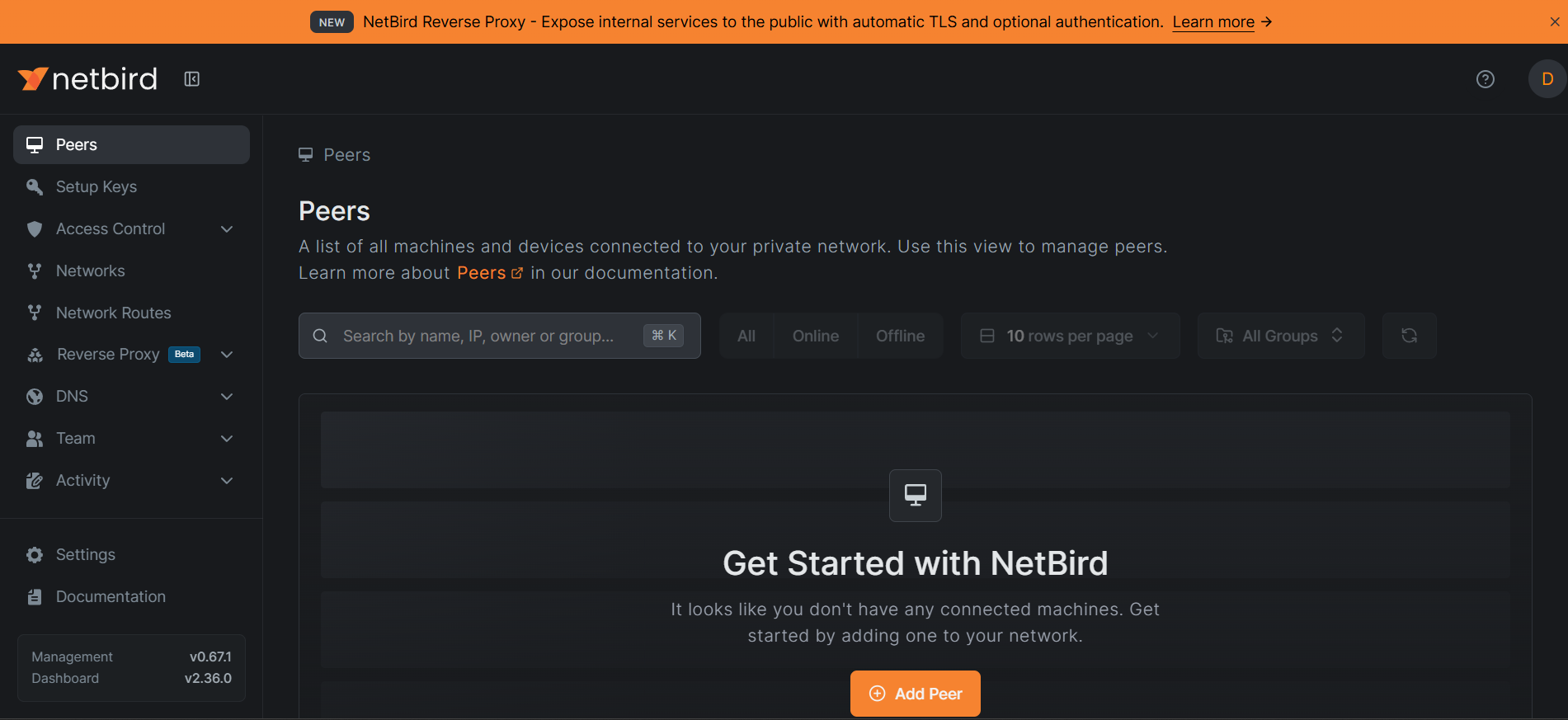
Visit the netbird dashboard in your browser. You should get the Netbird web dashboard over HTTPS once the stack is up and certificates are issued. The quickstart is meant to expose the deployment on your chosen public domain.
-
Install the Netbird client on a Debian server or workstation
Once your self-hosted control plane is online, install the Netbird client on any Debian/Ubuntu node you want to join.
Netbird’s Linux install docs provide both the one-line installer and the APT repository method.
Fast method
curl -fsSL https://pkgs.netbird.io/install.sh | sh
Debian APT method
sudo apt-get update
sudo apt-get install -y ca-certificates curl gnupg
curl -sSL https://pkgs.netbird.io/debian/public.key | sudo gpg --dearmor --output /usr/share/keyrings/netbird-archive-keyring.gpg
echo 'deb [signed-by=/usr/share/keyrings/netbird-archive-keyring.gpg] https://pkgs.netbird.io/debian stable main' | sudo tee /etc/apt/sources.list.d/netbird.list
sudo apt-get update
sudo apt-get install -y netbird
Those package-repository steps are from Netbird’s official Linux installation page.
-
Register the client with your self-hosted Netbird
From the Netbird dashboard, create a setup key for a machine or a reusable enrollment flow, then run something like this on the client:
sudo netbird up \
  --management-url https://netbird.example.com \
  --setup-key YOUR_SETUP_KEY
For interactive/user-based enrollment, the dashboard may instead guide you through login-based setup depending on how you configure identity. Netbird’s general getting-started flow uses
netbird up --setup-key ...to enroll a Linux machine.See Also: Comprehensive List of Top 10 Uses for VPS Servers
After joining, verify:
netbird status
-
Validate peer connectivity
Once two or more machines are enrolled, confirm they received Netbird addresses and can communicate according to your policies.
Useful commands:
netbird status
ip a
ping
Then use the dashboard to define groups, routes, and access policies as needed.
-
Know where the important files live
Netbird’s configuration reference says the standard self-hosted deployment created by
getting-started.shincludes at least:docker-compose.ymlconfig.yamldashboard.env
and sometimes reverse-proxy-specific files, depending on your selected setup.
So your main working folder will look roughly like:
~/netbird/
├── docker-compose.yml
├── config.yaml
├── dashboard.env
└── ...
-
Back up the deployment
Netbird’s backup docs recommend copying the generated configuration files and then copying the server database from the container after stopping the server container.
Example:
cd ~/netbird
mkdir -p backup
cp docker-compose.yml dashboard.env config.yaml backup/

docker compose stop netbird-server
docker compose cp -a netbird-server:/var/lib/netbird/ backup/
docker compose start netbird-server
-
Upgrade later
Netbird’s official upgrade steps are:
cd ~/netbird
docker compose pull netbird-server dashboard
docker compose up -d --force-recreate netbird-server dashboard
If your setup includes the reverse proxy container, pull and recreate that too. Netbird’s upgrade guide also recommends reviewing release notes and taking a backup first. Current GitHub releases show active 2026 releases such as v0.66.4.
-
Troubleshooting checklist
If the install does not come up cleanly, check these first:
DNS not pointing correctly
Make sure your domain resolves to the VPS:
dig +short netbird.example.com
Required ports blocked
Confirm inbound access on:
80/tcp, 443/tcp, 3478/udp
Those are hard requirements for the quickstart deployment.
Docker not running
Check:
sudo systemctl status docker
docker compose version
Containers failing
Inspect:
cd ~/netbird
docker compose ps
docker compose logs --tail=100
Wrong working directory
Because the generated config is stored in the directory where you ran the script, running
docker composefrom somewhere else can make it look like the stack is missing.
Minimal command summary
sudo apt update && sudo apt -y upgrade
sudo reboot
sudo apt-get update
sudo apt-get install -y ca-certificates curl gnupg jq
sudo install -m 0755 -d /etc/apt/keyrings
curl -fsSL https://download.docker.com/linux/debian/gpg | sudo gpg --dearmor -o /etc/apt/keyrings/docker.gpg
sudo chmod a+r /etc/apt/keyrings/docker.gpg
echo "deb [arch=$(dpkg --print-architecture) signed-by=/etc/apt/keyrings/docker.gpg] https://download.docker.com/linux/debian $(. /etc/os-release && echo "$VERSION_CODENAME") stable" | sudo tee /etc/apt/sources.list.d/docker.list > /dev/null
sudo apt-get update
sudo apt-get install -y docker-ce docker-ce-cli containerd.io docker-buildx-plugin docker-compose-plugin
sudo systemctl enable --now docker
mkdir -p ~/netbird
cd ~/netbird
curl -fsSL https://github.com/netbirdio/netbird/releases/latest/download/getting-started.sh | bash
cd ~/netbird
docker compose ps
docker compose logs -f
See Also: Upgrade CentOS 7 to AlmaLinux 8+ with Leapp
Conclusion
You now know how to deploy Netbird on Debian VPS.